Traditional voiceovers require scheduling time, hiring talent, and budget to make it all happen. But when you’ve got a tight timeline or limited budget, going the traditional route isn’t always a realistic option. Which is exactly what our AI Voiceover tool was created for.
In this article, we’ll cover ways you can use AI Voiceover in video projects using three different features: text to speech, voice cloning, and voice changer.
Article overview
What is the AI Voiceover tool?
A part of our AI Toolkit, AI Voiceover is powered by ElevenLabs technology and gives you the ability to generate, refine, and customize narration for any project. You have the option to choose between 60+ different expressive core voices and our distinctive, exclusive artist voices created in partnership with our global network of contributors.
This tool is conveniently built right into the Storyblocks platform so you can easily incorporate it into your creative workflow. It includes support for 29 different languages, including English, Chinese, Spanish, and more.
Best of all, every AI Voiceover is fully backed by Storyblocks’ comprehensive license so you can create with confidence.
Ways to use AI Voiceover
With the ability to quickly generate voiceovers in minutes, there’s tons of ways to use the tool for your projects. There are three different features that you can use to create narration or audio that we’ll walk you through and highlight creative ways to use them.
1. Text to speech: Quick voiceovers with a wide variety of voices to choose from
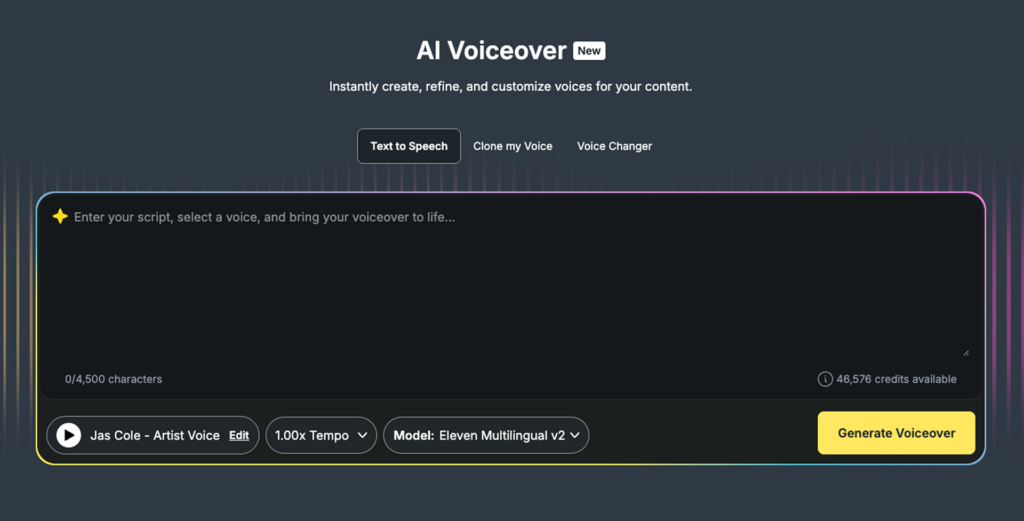
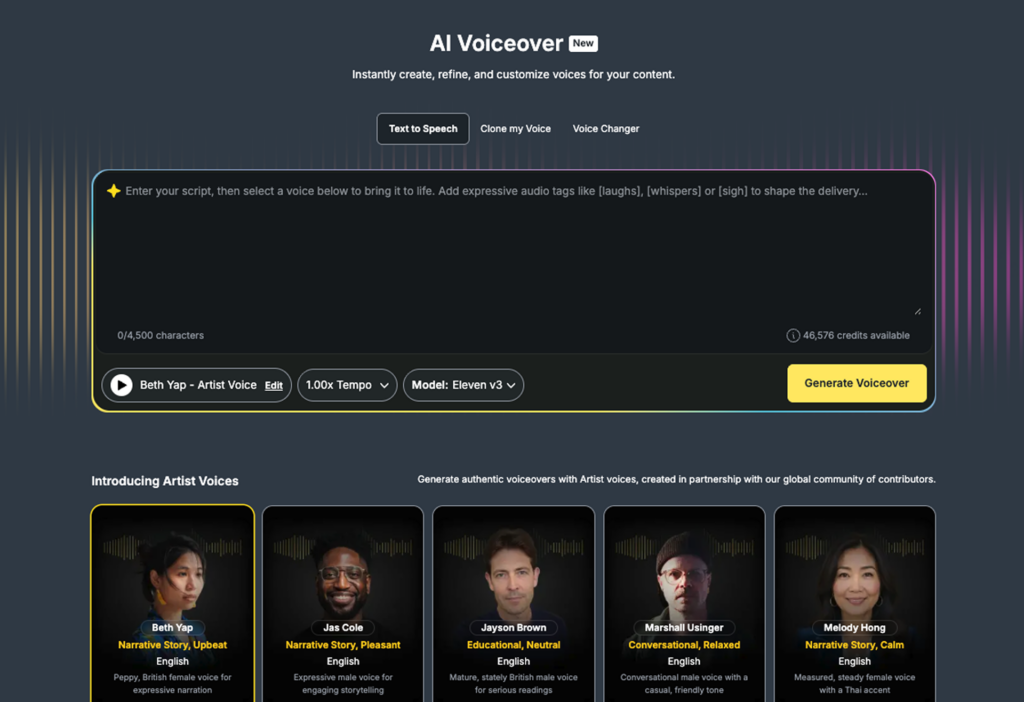
Need to create a narration for a video based on a script? Using Text to Speech, all you have to do is type or paste your script into the text box and select a voice to bring it to life. For more precise adjustments of your narration’s delivery or performance, add in audio tags (more on that below). Then, just hit Generate Speech to create your voiceover.
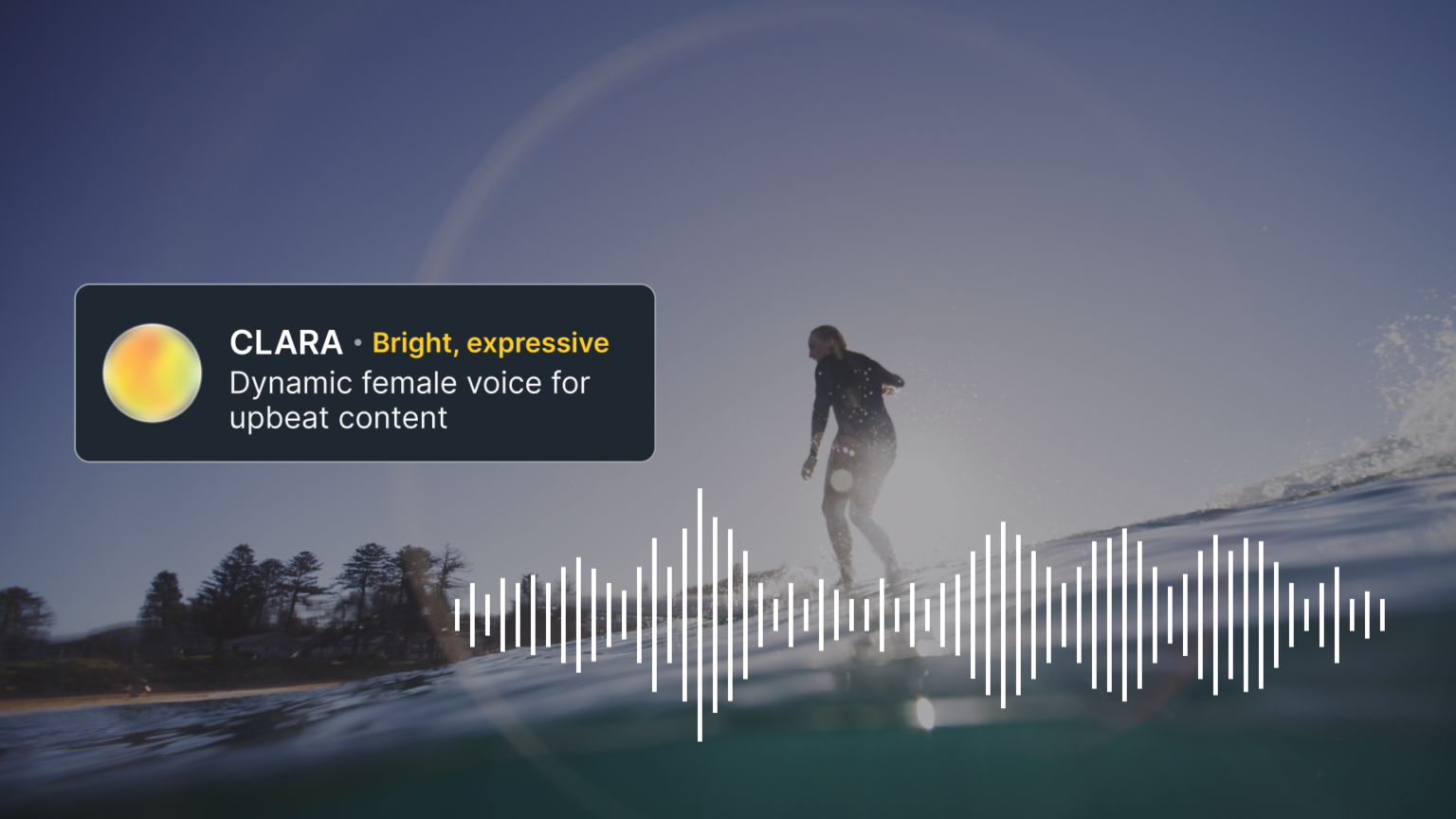
You can filter through the different voices by language, accent, gender, tone, and use case to find the best fit for your project. Each voice also has a short description to give you an idea of the personality and vibe. Storyblocks also offers 5 exclusive Artist voices to choose from that we created in partnership with five of our library contributors – available in English only.
Creative uses for text to speech
- Creating a narration for a pitch deck, animatic, rough cut, or early concepting of a video
- Producing multiple versions of a script to test with a video or project
- A/B testing different voices to see how each performs with the same video
- Event or live announcements
- Generating narrations for text-heavy videos like educational explainers, training videos, tutorials, etc.
- Placeholder voiceover to keep a project moving while final VO talent is hired
- Creating multiple voiceovers for different versions of a video (long-form, short-form cutdowns, etc.)
- Fast narration/audio turnaround for hopping on video or social media trends
2. Clone my Voice: Your voice, scaled for any script
If you don’t want to use one of the available voices, you can also upload a recording of your own voice to generate audio using Clone My Voice. Once your voice is cloned, all you have to do is add text or drop in a script to generate your recording.
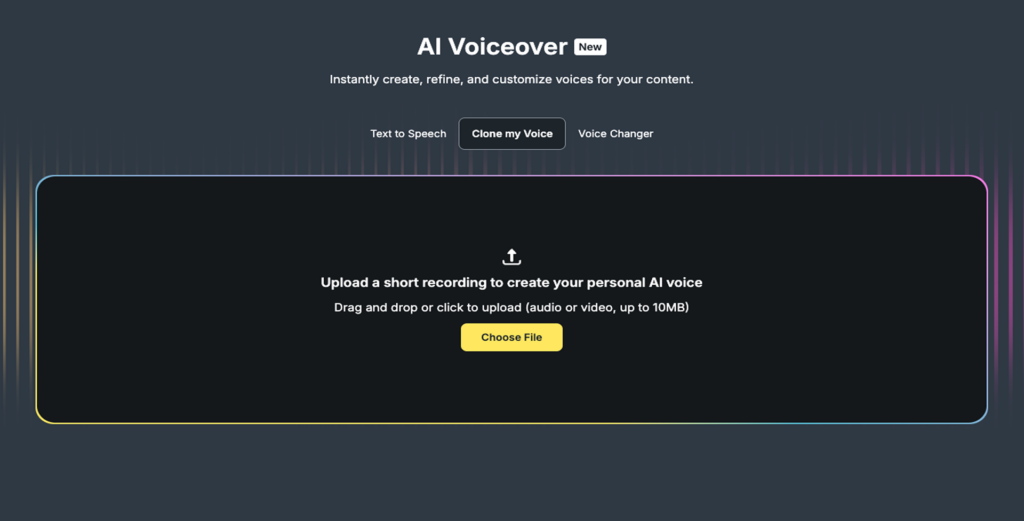
For best results, make sure that the recording you upload has a natural tone with minimal background noise. Clone my Voice will match the tone and sound profile from it.
Be sure to only upload recordings of your own voice or voices you have explicit permission to use, so that everything you use is fully covered under our license.
Creative uses for Clone my Voice
- Create batch voiceovers for videos to use as placeholders or final narration for multiple projects quickly
- Create a cloned version of a CEO or executive’s voice to easily add to videos or marketing materials
- Easily fix missed words or update lines so you can avoid a full re-record
- Update videos or projects with the latest information
- Create personalized voiceovers at scale for leads or prospects
- Test out scripts or ideas before you jump into recording
3. Voice Changer: Transform your audio while keeping pacing and emotion
If you like a recording or take but don’t want to use your own voice or you want to upscale an existing recording, Voice Change lets you transform it into one of our different voice styles. The delivery, intonation, cadence, and emotion of your original recording stays the same, just spoken through a different voice.
For Voice Changer, the quality of your original recording will impact how your generated voiceover will turn out. So to get the best results, use professionally recorded audio without any background noises and be sure the cadence and pronunciation of your recording matches what you’re looking for.
Creative uses for Voice Changer
- Change your voice for different characters in a skit, podcast, or video
- Say it your way, but change the voice to protect your privacy
- Test out how videos perform with different voices compared to your own
- Match the voice style to different video genres
- Easily refresh or rebrand older videos
- Change the accent or gender of your voice to better suit your audience(s)
Quick tips for using AI Voiceover
1. Experiment with audio tags to get the performance you want
If you need to adjust the pacing of your voiceover, AI Voiceover now supports the use of audio tags to help add cues into your script’s delivery.
These cues include everything from how you want the a line or part of a sentence to be spoken with tags like [WHISPER] or [SHOUTING], adding accents or personas with tags like [French accent] or [pirate voice], adjusting timing with tags like [pause] or [rushed], and much more.
You can get the full breakdown of how to use audio tags in the seven different guides created by ElevenLabs here.
2. For best results, upload a clear sample
Clone My Voice and Voice Changer work best when the sample you upload is as clear as possible, with minimal background noise, echo, or any other audio issues.
Try out AI Voiceover for yourself
With so many different ways to use the AI Voiceover tool, there’s tons of different ways to speed up your creative workflow. It can help you save time and production costs without having to give up creative control. Sign up for Storyblocks today to try out everything in our AI Toolkit, including Voiceover, Video Editing, Video Generator, and Image Generator. On top of that, you’ll get unlimited downloads of over 7 million royalty-free, human-made stock assets.