After Effects is an excellent piece of software. That’s a given, considering it’s been around for decades now. However, in its basic form, it leaves a lot to be desired. While Adobe does update and add new features from time to time, those updates are infrequent and sometimes slightly lackluster. Because of that, to really get the best out of it, you often need to rely on third-party After Effects plugins.
The market for After Effects plugins is absolutely endless, and it doesn’t stop there. There are also presets, templates, and scripts that you can bring into the software to help your workflow. In this article, I’m going to share my top 10+ After Effects plugins (and some scripts) that I use frequently as a longtime editor, filmmaker, and creator.
In this article
- 10 best After Effects plugins
- 1. Anchor SNIPER by Video Narco
- 2. Kbar3 by KraftyFX
- 3. Adobe Creative Cloud Plugin by Storyblocks
- 4. Shadow Studio 3 by Plugin Everything
- 5. Autofill by Plugin Everything
- 6. Newton 4 by Motion Boutique
- 7. Deep Glow by Plugin Everything
- 8. Element 3D by Video Copilot
- 9. Cyclops 3 by Kyle Martinez
- 10. Declutter by Rodrigo Dominguez
- 11. Un-PreCompose by aescripts batchframe
- How to install After Effects plugins
- Explore more ways to enhance your After Effects workflow
10 best After Effects plugins
I’ve been using After Effects for over 20 years now. I’ve seen the software take steps in all sorts of directions, with some useful pickups and some not-so-useful ones. After completing hundreds of After Effects projects, whether it’s a lower third and YouTube end card for a fabric company or VFX compositing for a web series, you start to see where the cracks are and where things can be improved.
Over the years, I’ve felt like Thanos in my quest to acquire all the best After Effects plugins. Although, in my case, I think I’d need a bit more than a glove to fit every plugin I’ve ever bought into my hand.
Quite often, it’s not that After Effects is unable to do the thing you want it to do. It’s more that it can do it, but there are too many steps, menus, and parameters to adjust to achieve the result you want. That’s where plugins come in – they help mitigate that issue and simplify processes that would otherwise take you much, much longer to do.
The After Effects plugins below are the ones I’ve found to be the most useful in helping me work faster and more efficiently.
1. Anchor SNIPER by Video Narco
How often have you tried to rotate or reposition an object or layer inside of After Effects, only for the anchor point not to be dead center? Personally, I’ve lost too much time opening the anchor position and trying to center it.
Anchor SNIPER eliminates this problem with just one click. Seriously. It’s compatible with multiple layers, allowing for individual or grouped adjustments without affecting existing animations. When you want the anchor point to be elsewhere on an object, such as a corner, Anchor SNIPER has over 20 options for relocating the anchor point.
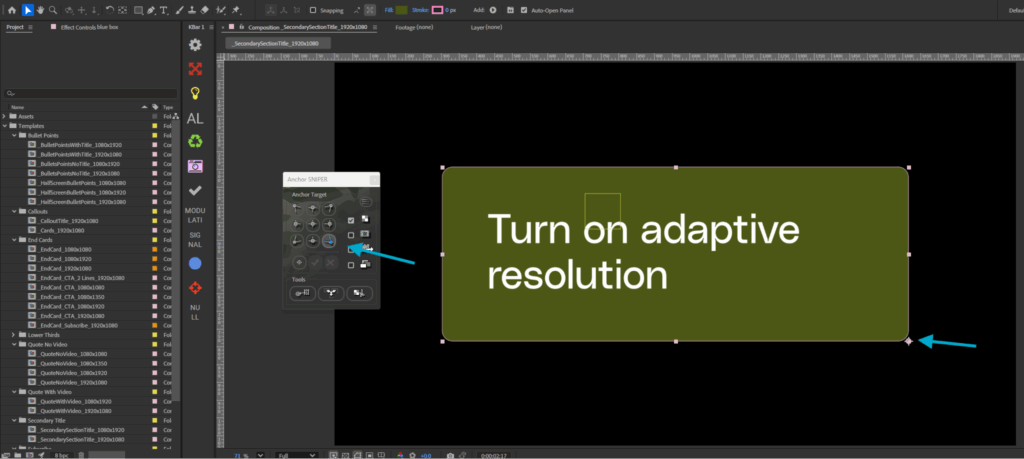
If a layer has been masked or is semi-transparent (such as text), the script will identify its actual non-transparent edges, accounting for masks and effects. Furthermore, it’s versatile, supporting layers of various types, including Bitmap, Vector, Text, Shape, Video, and even AE 3D layers. I consider this plugin an absolute must-have.
Cost: $14.99
2. Kbar3 by KraftyFX
When this After Effects plugin was first released, it was all over my Twitter feed. Kbar revolutionizes workspace customization in After Effects.
It gives you the ability to create and toggle between multiple toolbars, ensuring your most frequently used tools, effects, presets, and more are readily accessible. I know that seems like it should be a basic aspect of After Effects, but it’s unfortunately not. Kbar really changes the workflow, especially if you often use some aspects of the toolbar systems.
Kbar’s custom toolbars are functional and customizable in their aesthetics, with features such as various icons, custom images, and emojis. Its drag-and-drop reordering capability and the option to snap the toolbar for a vertical view enhance user experience.
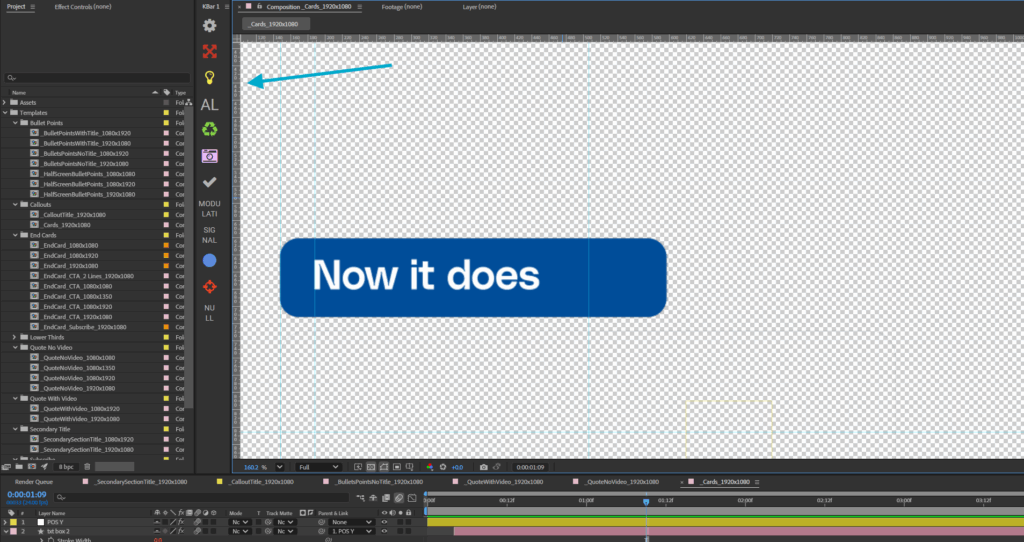
Its sharing feature lets users share their custom toolbars with colleagues or across their devices.
Cost: $39.99
3. Adobe Creative Cloud Plugin by Storyblocks
If you’re looking for a kick-start with the tools already built into After Effects, be sure to check out the Storyblocks After Effects template library, which has thousands of ready-to-go motion design templates that you can customize and drop straight into your projects.
However, you’re not going to have to leave After Effects to do this—oh no. Instead, you can download the Storyblocks plugin for After Effects. This plugin allows you to freely browse the Storyblocks library from within After Effects itself, saving a huge amount of time.
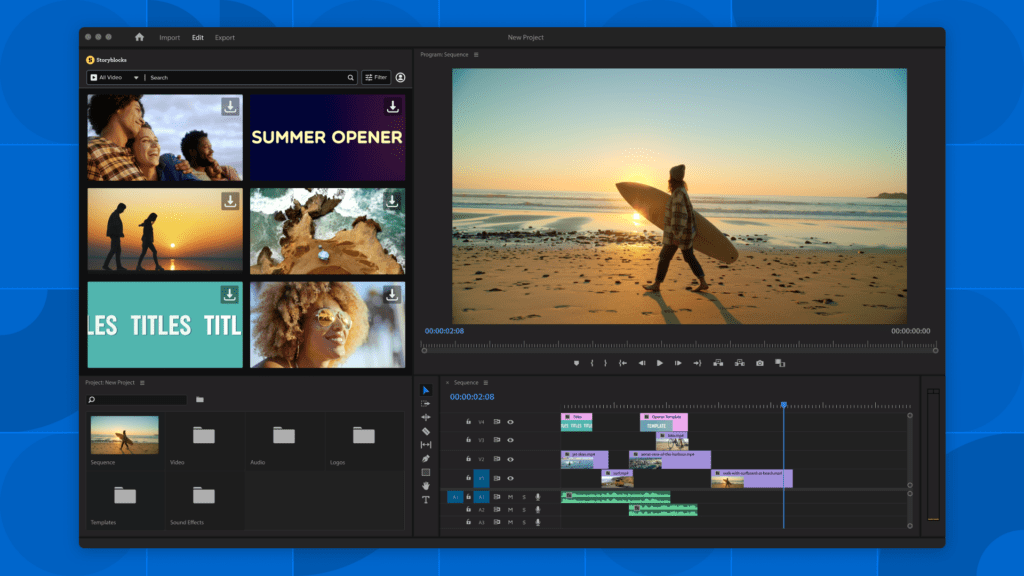
With the Adobe Creative Cloud Plugin from Storyblocks, you get full access to their library of over 6 million high-quality royalty-free assets right inside of After Effects. (It also works for Premiere Pro, too.) Instead of having to switch between your browser and software to download assets, you can search, browse, and download from the Storyblocks library right your editor.
Cost: Varies by subscription
4. Shadow Studio 3 by Plugin Everything
I love a good shadow plugin, as the default shadow functions in After Effects are clunky and dated. Now in its third iteration, Shadow Studio 3 is the ultimate After Effects plugin for shadow.
It produces fantastic ray-traced shadows and lighting effects. By using your alpha channel, you can simulate 3D instances such as global illumination and glossy reflections.
Additionally, you can produce voluminous results with directional and point lights. If you don’t want to play around with the settings, there are over 36 presets built into the plugin that you can apply to your object instantly. Shadow Studio 3 does it all, and you can get whatever look you want.
The image below shows a comparison of text with the standard drop shadow applied on the left, and the same text using Studio Shadow on the right.

As you can see, the standard effect doesn’t look very convincing that the text is being hit by a light source. In comparison, Shadow Studio completely transforms the text’s dynamics. The shadow is so expressive that the text almost reads as a 3D object.
Cost: $74.95
5. Autofill by Plugin Everything
Have you ever tried to create an object reveal that flows like water? It can be pretty challenging, and you usually have to use a concoction of transition wipes, keyframes, and mattes. Well, AutoFill fluidly fills the bounds of your layer to save you hours of tedious masking & keyframing. If it’s hard to picture, check out this promo reel to see precisely how it works.
When it first launched in 2021, it became a viral sensation within the After Effects community. Since then, Version 2 has been released, with the plug-in completely re-engineered from the ground up to take advantage of Adobe After Effects’ latest performance features, including multi-frame rendering.
The latest version introduces a new caching system for real-time, flicker-free previews, an all-new style builder for complex, multi-layered styles, a range of built-in and project-file presets, and three new gradient-based speed-map modes.
Cost: $99.95
6. Newton 4 by Motion Boutique
While After Effects includes various particle simulators with built-in gravity tools, it doesn’t have a native physics simulator that lets you apply animated gravitational properties to elements like shapes and text.
Instead, we have the fine folk of Motion Boutique who created their famous 2D physics engine for After Effects via plugin, Newton. This plugin lets you create realistic physics in After Effects, enabling you to transform your 2D layers into authentic simulations of real-world objects.
Need text to fall apart and collide with each other? Doing that by hand would take immeasurable time to look physically realistic; Newton can do it in moments.
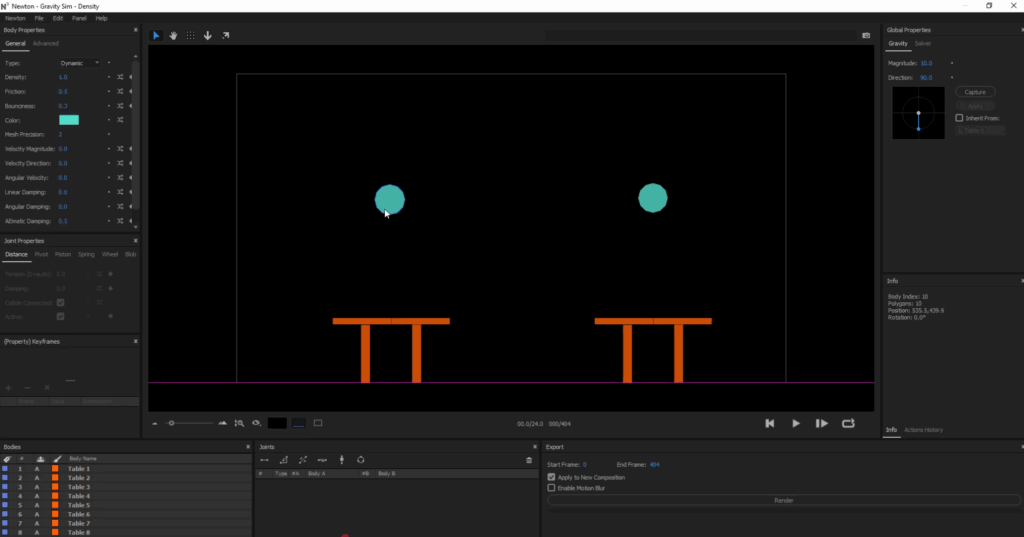
Now, I still only have V3 installed, but they’ve since released version 4, which has a plethora of new features, including:
- Trigamic body type
- Hidden body parameter
- Water-like body parameter
- Grenade body parameter
- Teleportation mechanism
I suggest you visit the product page, where you’ll find a variety of tutorials. You can also download a trial version and explore it for yourself.
Cost: $249.99
7. Deep Glow by Plugin Everything
In a blog article on how to create a glowing animation effect in After Effects, I noted that the default glow effect built into After Effects isn’t powerful. It’s pretty lackluster, if I’m being honest.
This is where the Deep Glow plugin from Plugin Everything becomes so valuable for achieving better glow effects in After Effects. It’s an excellent plugin that creates a physically accurate glow using an inverse-square falloff algorithm, resulting in a glow that’s brightest at the center and naturally fades from light to dark.
There’s also a wide range of parameters that don’t exist in the standard glow effect, such as chromatic aberration, aspect ratio controls, and more. Because it’s GPU-accelerated, performance holds up well even when the effect is applied across multiple layers.
The default glow effect often produces a harsh edge, usually requiring several stacked glow effects to achieve something that looks believable.
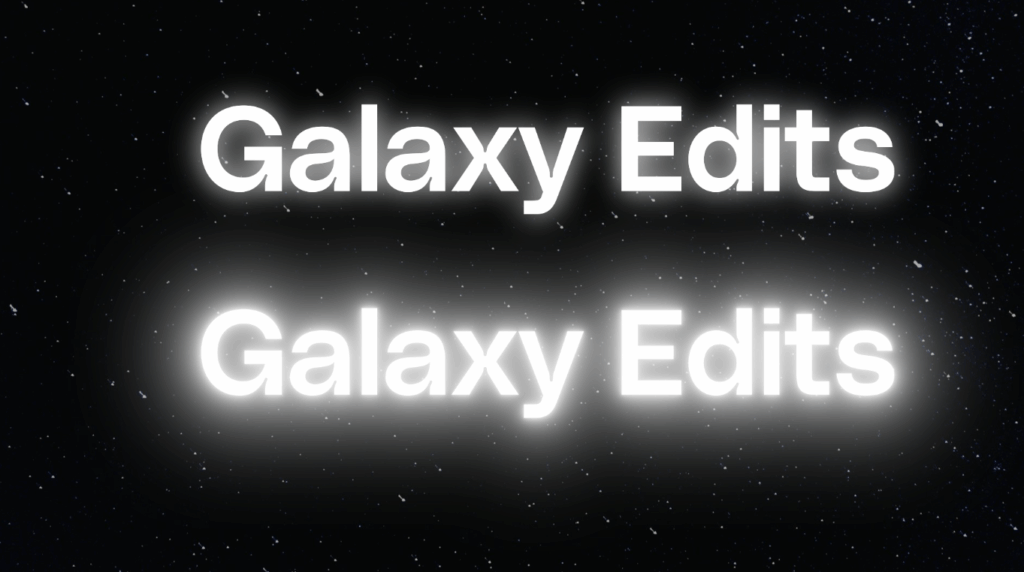
Deep Glow’s realistic falloff and color blending make the result look far more natural and professional.
Cost: $99.95
8. Element 3D by Video Copilot
After Effects has historically always been a 2D compositor. Meaning, unlike Blender and Cinema 4D, you couldn’t make three-dimensional scenes that you could move around in and animate in z-space. You could create the illusion of 3D using parallax, layer stacking, and similar techniques. But the moment you switched to a side camera or a top-down camera, you wouldn’t necessarily be able to see your scene properly because everything was flat and was a two-dimensional object.
While After Effects has implemented updates that allow you to work with 3D objects within a composition, it’s still somewhat lacking, especially with texturing. If you need to 3D into your motion design objects and don’t want to start learning entirely new software like Blender or Cinema 4D, Element 3D can be a good intermediate option.
Created by Andrew Kramer of Video Copilot, Element 3D is a plugin for After Effects that lets you work with 3D objects. You can import, texture, light, position, and render 3D models directly within After Effects and integrate them into your compositions. Although the software is relatively old and hasn’t been updated in years, it remains a reliable tool. There are extensive tutorials available online, and the workflow should not be a step too far outside the realm of normal After Effects activity.
Cost: $199.95
9. Cyclops 3 by Kyle Martinez
As a motion designer, your reel is your visual résumé for landing work. But when your skills are strong, the value of what you’ve created isn’t always immediately obvious at a glance.
Cyclops is a unique tool that allows you to create “behind the scenes” renders. You can showcase null layers, motion paths, and bounding boxes. It offers customizable render settings, including wireframe and green screen options.
This is great for social media behind-the-scenes breakdowns or case studies, and for when showing how the magic was made is just too good not to share.
Cost: $20.00
10. Declutter by Rodrigo Dominguez
As much as we like to talk about organization as a key skill for video editors and the importance of maintaining a clean workflow with creating video, sometimes things get messy.
Maybe you’re in a rush trying to beat the countdown for a deadline, or you’re just playing around with some effects. Before you know it, your media pool is absolutely cluttered with various file types, compositions, layers, non-objects, and more. And finding the exact item you need becomes a task in its own right.
This is where another convenient After Effects plugin I highly recommend called Declutter comes in, and it does precisely what you might expect. It automatically organizes your messy project panel into folders and can also be color-coded at your direction.
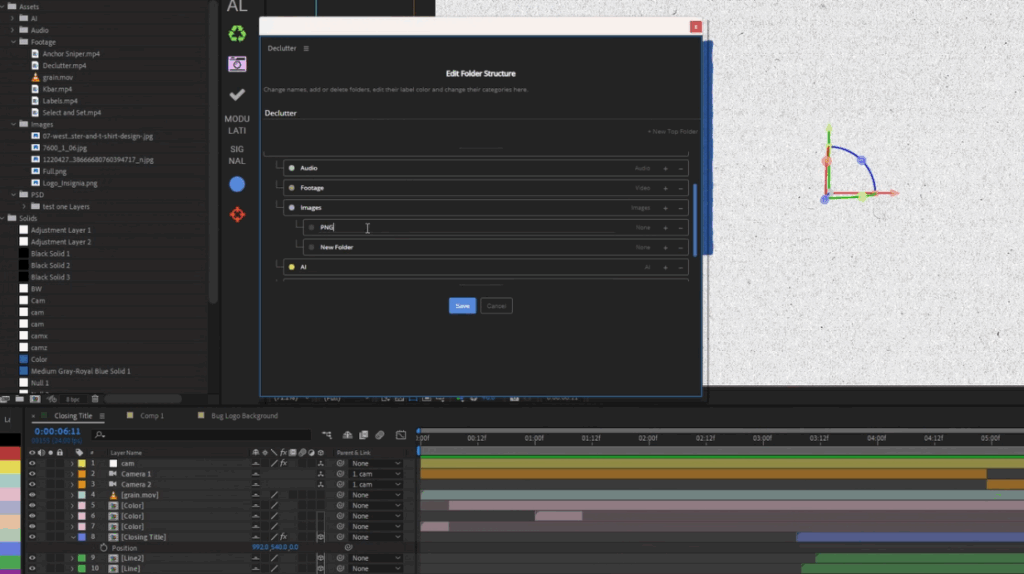
If you work in a specific way, you can also edit the folder structure beforehand, so it automatically places certain media types in a folder of your choosing rather than the default one.
Cost: $24.99
11. Un-PreCompose by aescripts batchframe
Another plugin that should be standard within After Effects is Un-PreCompose. Creating pre-compositions inside of After Effects is a standard practice. They not only keep your timeline somewhat manageable, but there are several effects, parameters, and adjustments that you can only create once a set of objects has been pre-composed.
However, what if we want to go back in that process a few steps? What if we wanted to take all of our objects from the pre-composed composition and bring them back into the main composition? Well, you need to open the new composition, copy all the pre-composed elements, and paste them back into the original composition. So in essence, you can’t. To me, it’s absolutely baffling that it’s not a built-in function in After Effects.
Thankfully, there is a tool called Unprecompose that lets you do this. It’s a plugin that does exactly what it says on the label – it reverts the pre-compose for your compositions, restoring all layers to their original positions.
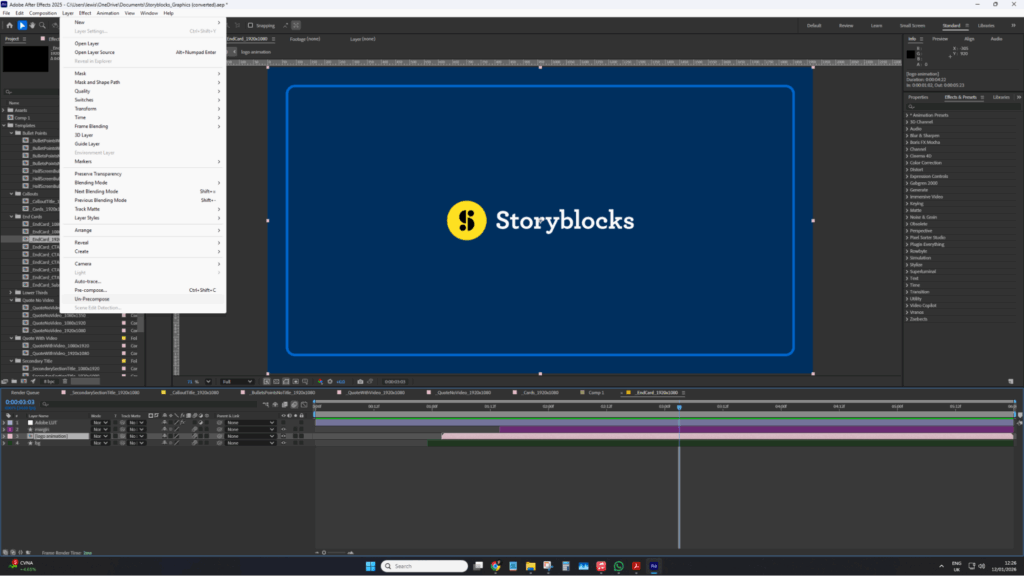
The only drawback of the Un-PreCompose plugin is that you can only access it through the layer menu, as shown in the image above. Thankfully, you can work around this by assigning a keyboard shortcut to the plugin for quicker access.
Cost: $29.99
How to install After Effects plugins
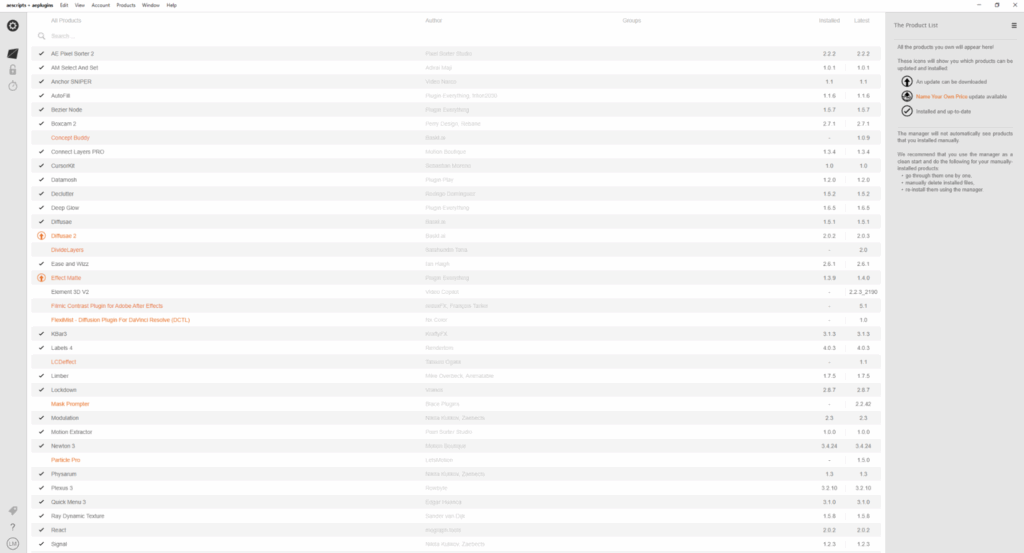
All of the plugins we’ve featured in this post are acquired through the aescripts + aeplugins marketplace. This makes installing them a breeze, since the platform has an installer manager that eliminates the tedious task of installing plugins in specific locales.

Instead, all you need to do is download the aescripts manager and link your account. Then when you purchase a new plugin or script, select it from the product list in the manager, make sure After Effects is closed, and hit install. The manager will then install the plugin and activate the license, so you don’t have to hunt down your license file.
Explore more ways to enhance your After Effects workflow
These plug-ins, scripts, and extensions are incredible tools to further enhance After Effects’ capabilities. I would recommend that anyone experienced with After Effects take a look at all the great options out there, as there are many ways to improve your editing workflow. If you’re new to After Effects, though, I would wait before installing any plugins or add-ons and learn the native software first.