Turning your ideas into real, high-quality visuals just got a whole lot easier. The newest addition to Storyblocks’ AI Toolkit, Image Generator gives you the power to create custom visuals based on your ideas that are fully licensed. No more searching for “good enough” images that don’t match your creative vision. Learn more about the AI Image Generator tool, how it works, and how you can use it alongside our 100% human-made stock library to support your workflow.
Inside this tutorial
What is the AI Image Generator tool?
Powered by Runway’s Gen-4 Image model, AI Image Generator lets you create completely custom, personalized visuals using a text prompt. Just describe what you want to include in your image, upload up to 3 reference images to help guide the direction, and hit generate to bring your ideas to life.
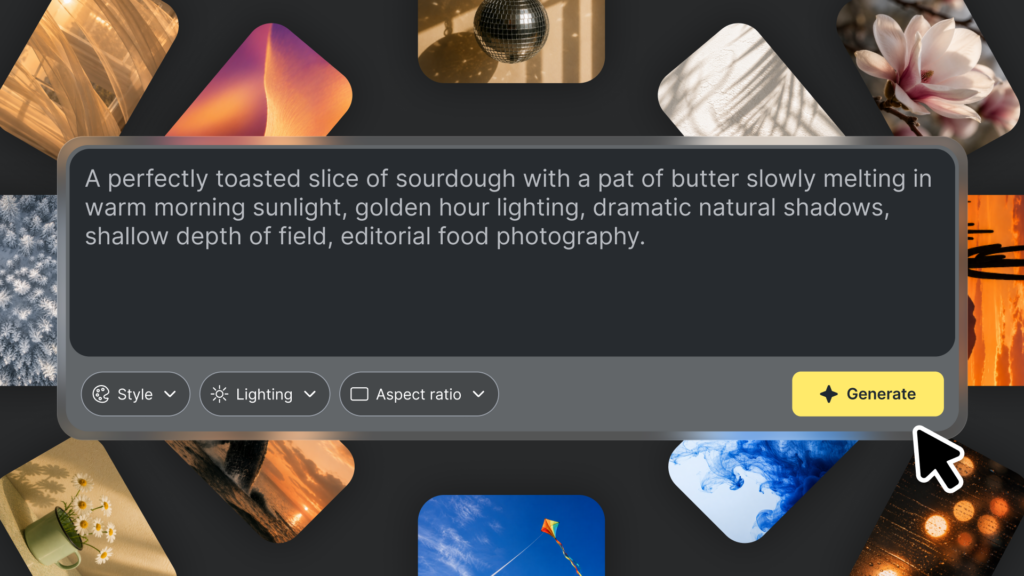
You can find the Image Generator inside of our AI Toolkit, alongside other powerful tools to help you build a workflow that fits how you like to create. And licensing is simple – everything you create using AI Image Generator is fully covered under your Storyblocks license.
How to use Image Generator
1. Add your text prompt
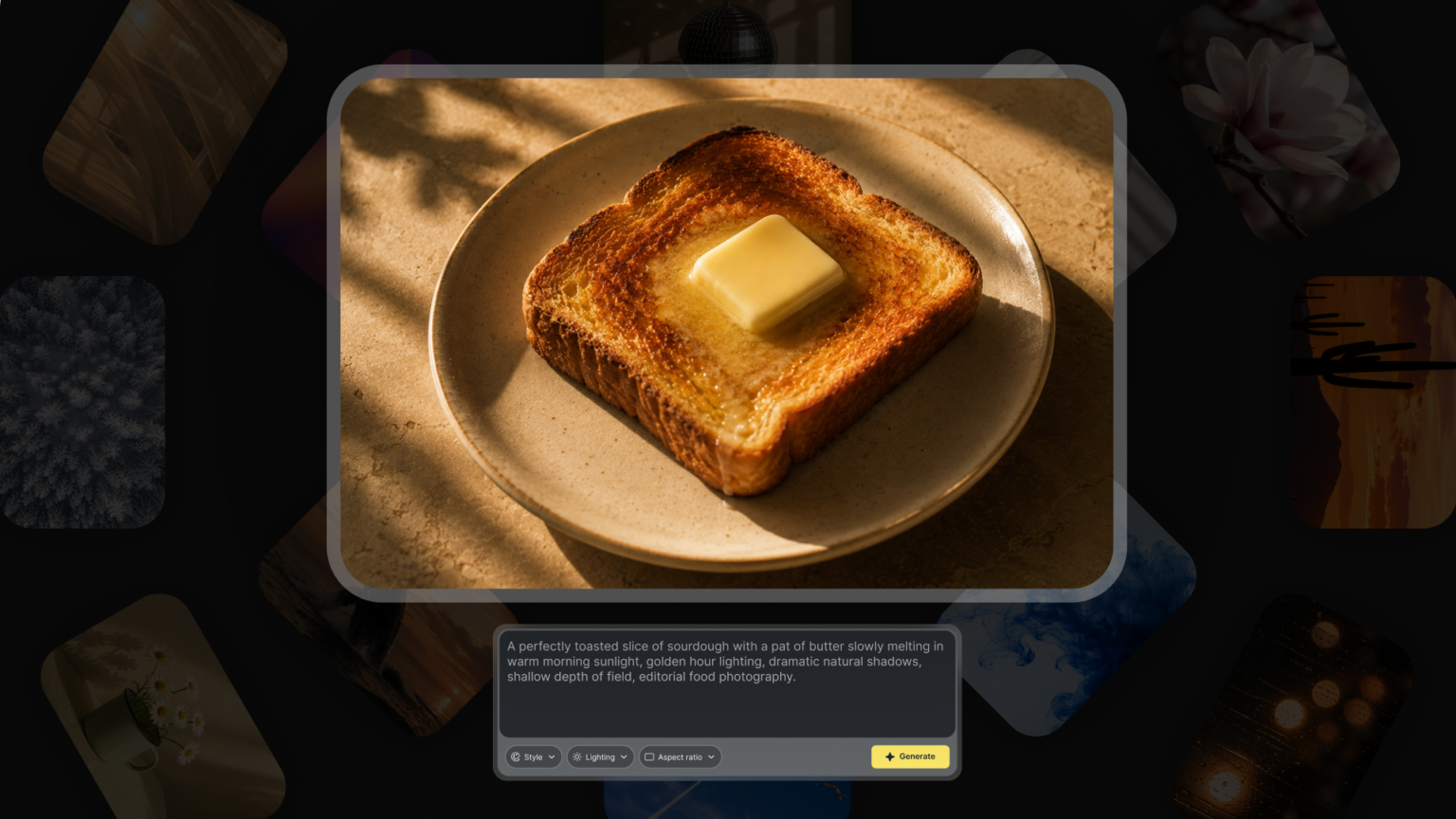
The first step in using AI Image Generator is writing out your text prompt that describes what’s included in the image you’re trying to create. No need to make it conversational or include any commands.
For Runway’s Gen4 Image model, there’s no hard and fast rule about prompt length. You can have a short prompt and get good results. Or you can add two extremely detailed paragraphs and also get great results. It just depends on how specific your vision is.
So don’t worry about including too much detail, as long as you get the essentials – subject, setting, lighting, style, angle, and composition. When you’re adding details into your prompt, focus on what you want to include vs specifying what you don’t want to add.
Runway has a great prompting guide that gets into a lot of detail about different keywords you can use for visual styles and what kind of effect they will have on your image.
Example of a short prompt: A cartoon toasted slice of bread with a shiny butter pat in the middle on top of a simple white plate with a kitchen in the background.
Example of a good long prompt: Dark, noir-style side shot visual of a squirrel in a stereotypical detective hat and trenchcoat, smoking a cigar, looking out at the skyline of a large, grimy, metropolitan city under nightfall from the top of a building outdoors, with a waning moon that creates an eerie light. Smoke rises from a factory off in the distance.
2. Upload reference images (optional) and choose output settings
If you have specific visuals in mind for the direction or vibe of your image, you can upload up to 3 reference images to help guide the style.
For example, if there’s a specific background or setting you want your image to have, you can upload it to help give the generator a specific direction to use. Or if you’re creating an ad for a product, you can use examples of other ads that have a similar style to what you’re looking for.
Once you’re added your reference images, then you can choose the output settings for your image.
- Aspect Ratio: Pick between 16:9 (horizontal/landscape), 9:16 (vertical/portrait), 1:1, 4:3, or 3:4.
- Resolution: Choose either 720p or 1080p.
Then, it’s time to hit the yellow Generate Image button and bring your image to life!
Creative uses for AI Image Generator
Storyboarding and creating moodboards
When you’re planning out a new video, having a moodboard to show the vibe of your project and a storyboard to map out each shot are essential pre-production planning tools. Using AI Image Generator can help you quickly turn your ideas into visuals that can help guide your project.
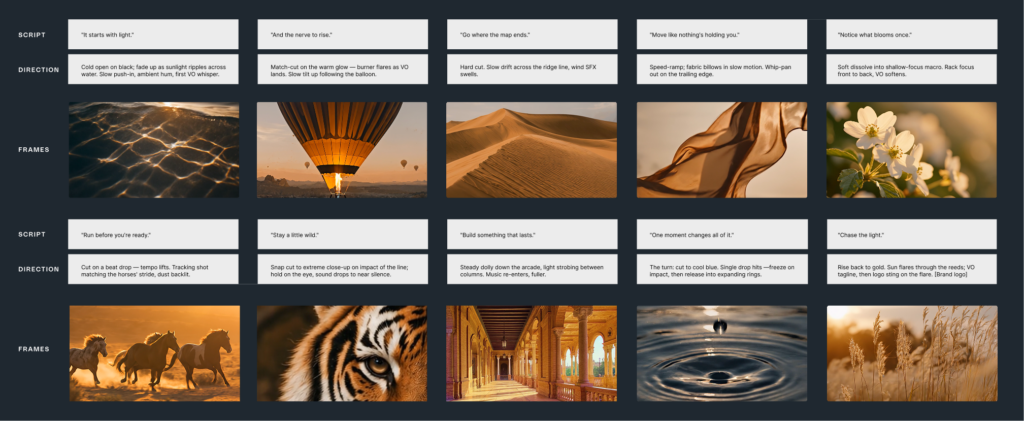
For moodboard images, you can combine 3 reference images to create one cohesive idea. Or for storyboarding, you can describe your shot ideas in detail to get images to add to your board that will help streamline production once you start shooting.
Feed into AI Video Generator
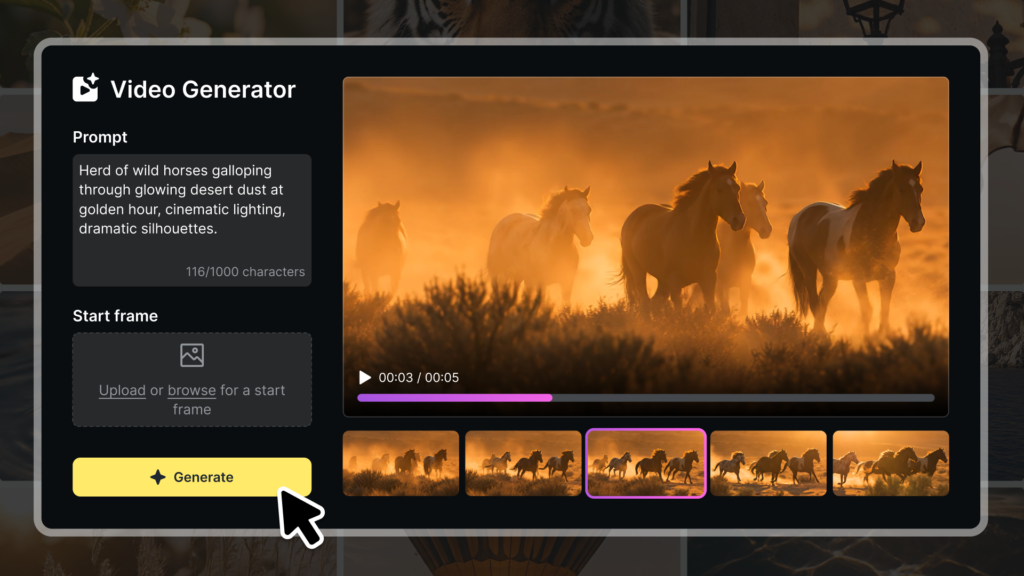
If you have a specific idea for a video or clip you want to create, you can use the AI Image Generator to create the perfect first frame for your video. This makes it so you can get all the details looking exactly how you want them before you put it into the AI Video Generator. Plus, you won’t have to spend as much time re-generating and tweaking your video to get it right, which helps you get the most out of your credits.
Creating backgrounds
For creators that film with a green screen, AI Image Generator can open up a new world of possibilities for customized backgrounds. Whether you’re filming niche scenes, need a historically-appropriate backdrop, or just need something specific you can’t find in our library, this is the perfect tool to help you create it fast.
Concept art and mockups
Early pre-production stages for projects can often be a challenge for creators, because of all the possibilities available. But having a tool like AI Image Generator can give you a way to visualize your ideas and start making directional decisions for your project. Whether it’s deciding the kind of setting your video will take place in, what your main character might look like, or mapping out poster designs, being able to create images for your ideas will help kick-start your creativity,
Campaign visuals
If you’re brainstorming visuals for a campaign, AI Image Generator can be a great place to help give you an idea of different directions to go. You can upload reference images to help guide the style of your images, taking inspiration from other campaigns, photos, designs, and more.
Practical guidelines for using generative video in your projects
As a final note, when you’re using generative images as a creator or brand, here are our recommended best practices to follow.
Tell your audience when you use it
The first guideline is to be transparent with your audience. When you use an AI generator or model to create an image and disclose it, it builds trust with them. It’s also very easy to do – just add small on-screen text to the generated image or include it in the description of your video, post, or wherever it is you’re posting it.
Follow industry regulations and brand guidelines
Make sure you’re staying within your brand’s guidelines and following any industry regulations regarding generative AI use as a second guideline. Some professions and industries don’t allow generative AI at all, while some have allowed certain use cases. If you aren’t sure about your company or industry, ask your peers, co-workers, or leadership to find out.
This also includes staying up to date with the rules and restrictions on any platforms you might post to, such as YouTube or Instagram. YouTube has rules in their monetization policy about low-effort or repetitive content that uses AI-generated video or images that could put you at risk for being demonetized.
Start creating with a Storyblocks subscription
When you sign up for Storyblocks, you’re getting the complete creative package. Unlimited downloads from our 100% human-made stock library of over 7 million pre-licensed assets, expertly curated by our in-house team with new content added regularly. Time-saving features to help you streamline every stage of production, like our Adobe Creative Cloud plugin. A complete AI Toolkit with industry-leading generative models from Google, Runway, and ElevenLabs. All covered by our straightforward, comprehensive license. Sign up today to get everything you need to tell your story, your way.