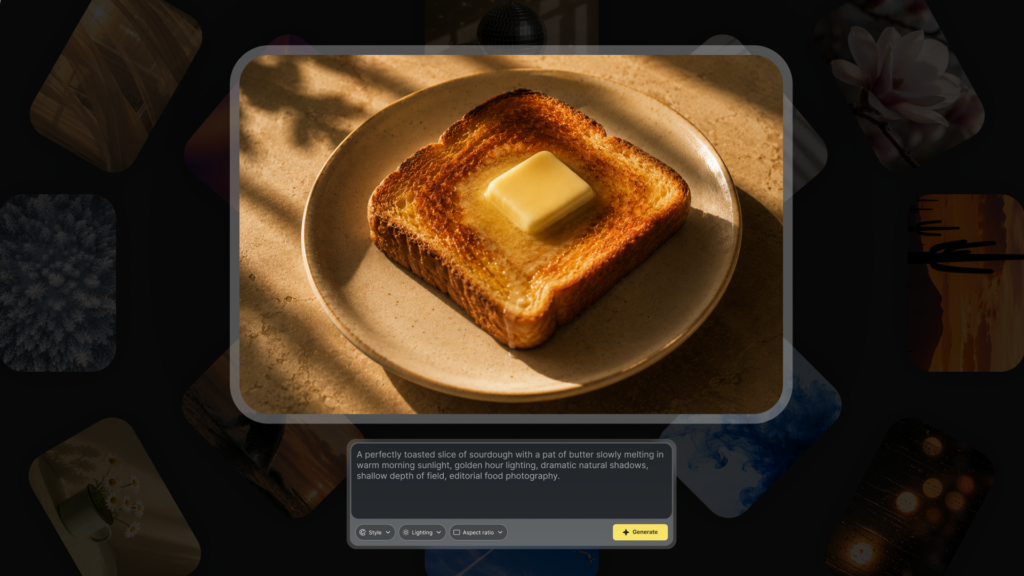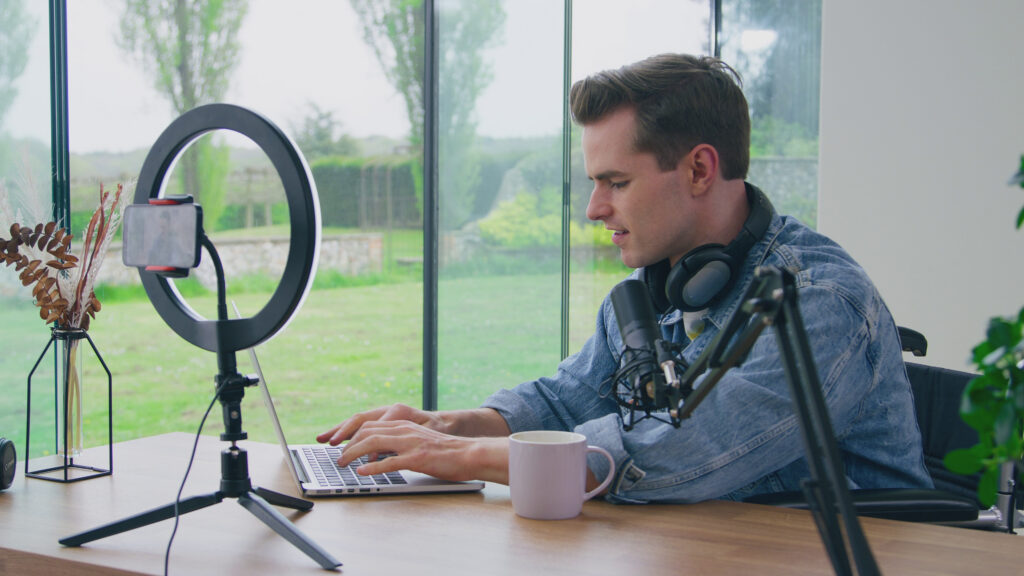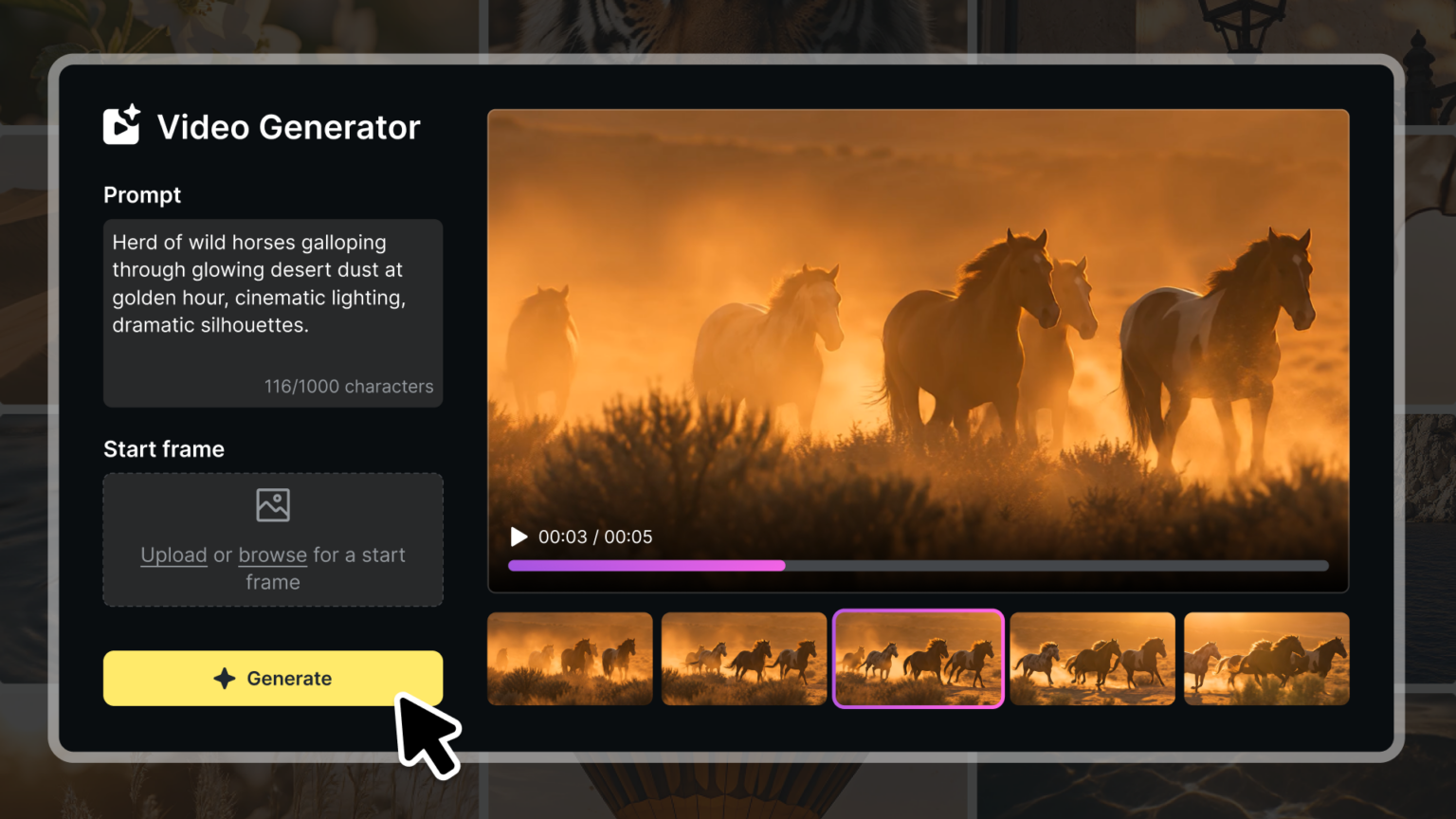
Stock video is an incredible resource for creators – but it’s impossible for any library to have the right clip for every single project. Or in some cases, you might want to test out an idea for a shot before you start filming. That’s where our new Video Generator tool, built into the AI Toolkit, is an incredible resource for every stage of production paired with our 100% human-made stock library.
In this tutorial
What is AI Video Generator?
The Storyblocks AI Video Generator lets you create your own personalized video clips using Google’s Veo 3.1 Fast model. You can either describe your clip with a text prompt, or use a reference image (either upload your own or choose one from the Storyblocks library) as a starting frame and add text to describe how you want to add motion to it.
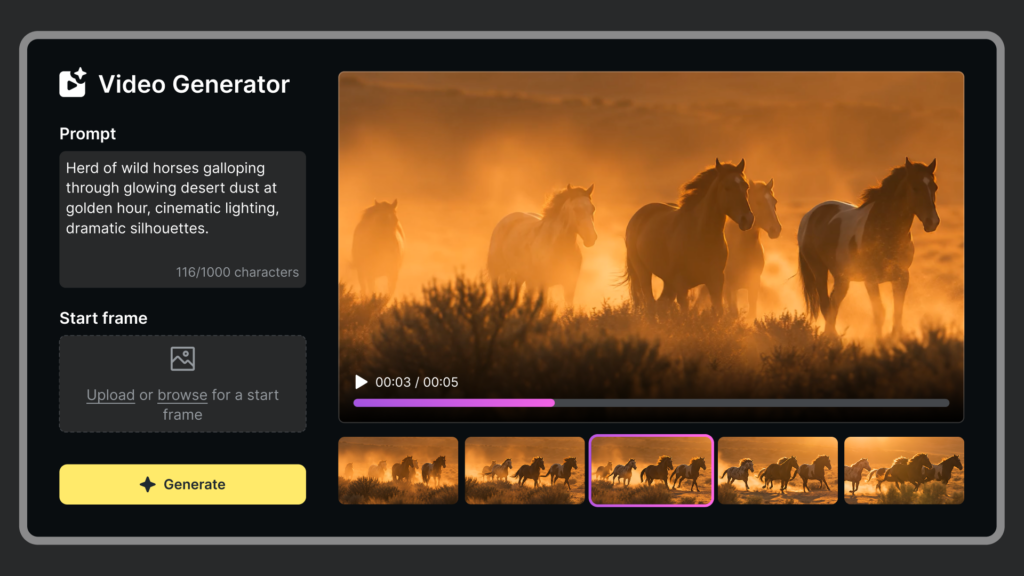
Built right into the AI Toolkit hub on Storyblocks, you can easily access it whenever your ideas go beyond what we have in our library. Every generated video created with reference images from our library or text only has commercial use under your Storyblocks license.
How to create a clip with the Video Generator
Using the Video Generator is pretty straightforward, but there are two different ways you can approach it, along with different settings to choose from.
Using just a text prompt
To get the best results while just using a text prompt to create your video, the key is to be specific, clear, and concise. So while you should be sure to include details, you don’t want to write up an entire paragraph. Prioritize the most important elements to include, and then write your prompt from there.
1. Write your text prompt
A good prompt should include the subject of your video, whether it’s an animal, person, or object. Then, you’ll want to describe the setting that your subject is in. If you’re looking for a certain kind of shot, be sure to include that too – such as saying whether it’s a close-up, over-the-shoulder, wide, aerial, etc.
Once you have the subject, setting, and shot type, the final two things your prompt should include are the action (what’s happening in the clip) and the style you want the video to have. Here’s two different example prompts to give you an idea of what it looks like when you’ve covered all of those bases.
“A close-up shot of a cartoon siamese cat playing with a small, gray mouse toy on a plush white carpet in the living room of a cozy, modern apartment.”
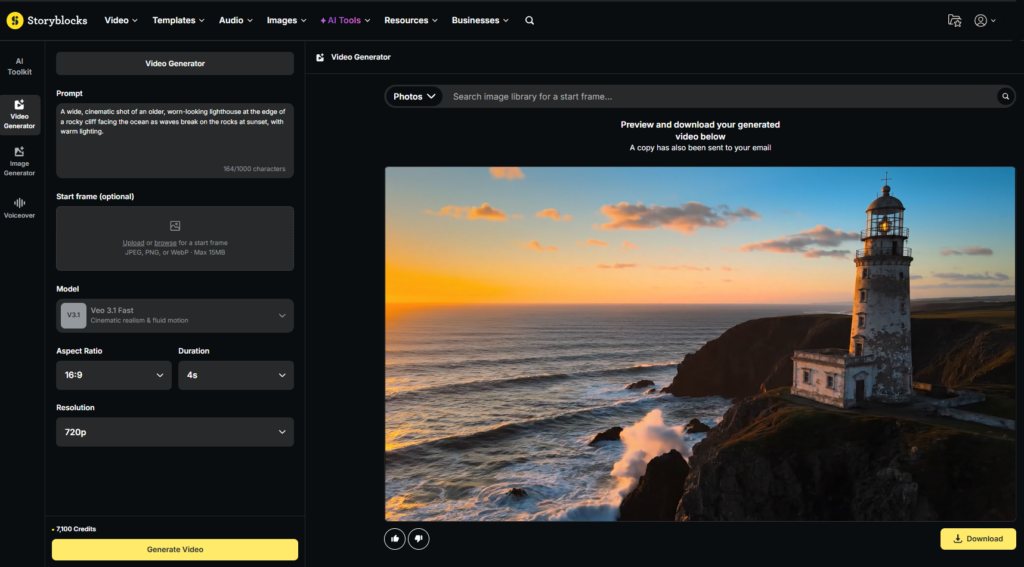
“A wide, cinematic shot of an older, worn-looking lighthouse at the edge of a rocky cliff facing the ocean as waves break on the rocks at sunset, with warm lighting.”
Text prompt essentials to include = Subject + Action + Setting + Style + Shot Type
2. Choose the technical settings for your video
Once you’re happy with your prompt, all that’s left to do is to adjust the technical settings of your clip.
- Aspect Ratio: Choose from 16:9 (horizontal/landscape) or 9:16 (vertical/portrait).
- Duration: Set your clip’s length to 4 seconds, 6 seconds, or 8 seconds.
- Resolution: Choose from 720p or 1080p.
3. Generate your video
Finally, once you’ve put in your desired settings for the output of your clip, hit the yellow Generate button to create your video. It may take a few minutes to generate. Once it does, you can download your clip using the yellow Download button. A copy of your video will also be sent to your email.
Using an image as a starting frame
The other option for creating a video is choosing an image to use as your starting frame, then using the text prompt section to describe what you want to animate or create from that image. The same rules as above apply, but this time, you should start with your image before you add your prompt.
1. Choose or upload an image to use as your starting frame
When you add an image to your video generation, that’s what the tool will use as the very first starting frame and base of your clip. So if you have a specific idea for what you want your video to look like, or a particular image you want to bring to life with animation, this is the best option.
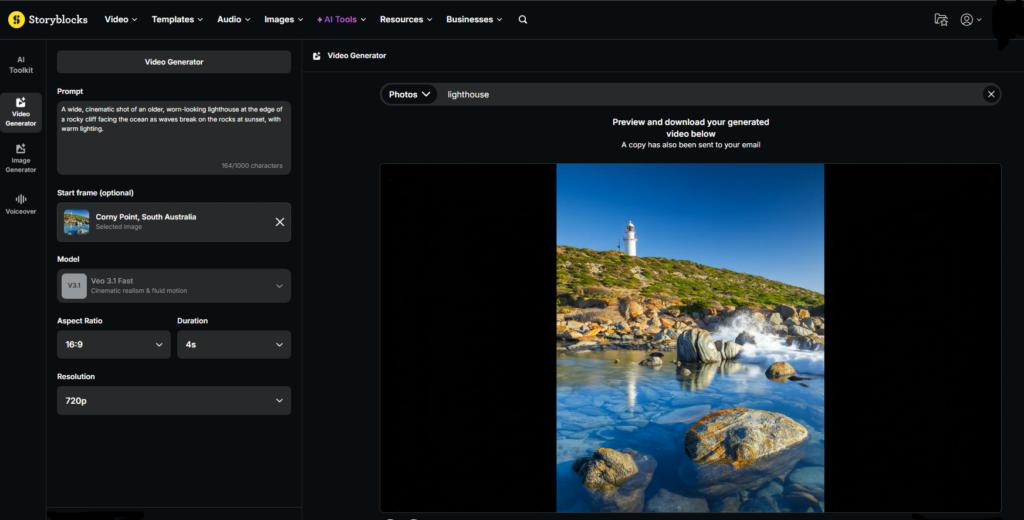
You can either browse the Storyblocks library to choose your image using the black search bar in the middle of the tool (you can also click the underlined browse text in the Start frame section to access the search), or you can click the underlined upload text to choose an image of your own.
If you use an image from the Storyblocks library as a starting frame, keep in mind that the generated video will stay within the size of the frame of the image. So while your video overall will have a 16:9 or 9:16 aspect ratio, the content inside your video will only take up as much space within the frame as the original image.
If you use your own image, be sure to follow our terms of service – images are also put through our content moderation filters.
2. Add your prompt and choose your technical settings
Once you’ve chosen the image to use as your starting frame, it’s time to add in your text prompt and choose your video settings.
Since you already have a starting frame, you can focus your text prompt less on describing what’s already in the image (like the subject, setting, or style) and more on what you want to happen from that starting image – i.e. the action.
If you choose an image of a dog, you don’t need to say what the dog looks like in your text prompt, since that’s covered. Instead, say what you want the dog to do – whether it picks up a ball and tilts its head, or if it jumps in the air and catches a frisbee.
After you’re done with your prompt, choose the output settings for your video (aspect ratio, duration, and resolution), then hit Generate to create your video.
Note: Video generations created with start frames using images from the Storyblocks library are fully covered by your Storyblocks license.
Creative ways to use AI-generated video
Now that you know how the Video Generator tool works, let’s explore the different ways you can use it to help support your workflow for creating videos.
When we put together our report, Authenticity in the Age of Generative AI, we found that the majority of both individual creators and businesses use generative tools for brainstorming and in post-production. 67% of businesses said time savings was the biggest benefit they saw when using it. For some teams, those time savings came from image or video generators making creation accessible for non-creative teammates.
Below are some of the ways that creators and businesses are using video generation to help speed up their workflows and streamline the areas of production that previously slowed them down.
Storyboarding or moodboarding
When you’re starting to conceptualize your project, using AI to brainstorm your early ideas for your storyboards or moodboards can help kick-start your imagination.
Of course, creating storyboards can be as simple as stick figure drawings. But having AI as a tool to bring your shot ideas to life gives you a more concrete visual to work from – and can help you also figure out what you don’t want your shots to include.
For moodboarding, if you have an idea for your a project that’s unique and hard to explain (like “Mad Max Fury Road meets Zootopia but with the style of old-school Disney 2D animation”), using AI to try to capture the mood you’re going for can help give you a solid direction moving forward. Or at least a good starting point for you to expand on, like bringing a setting to life.
Pitching an idea or proof of concept
Another way to leverage AI in early pre-production is to help you pitch an idea or quickly put together a proof of concept. Just like with the moodboard example above, selling an idea just based on a description can be tough – so having a way to create visuals that give others an idea of what you’re thinking can help seal the deal with stakeholders or clients.
Creating niche scenes or backgrounds
When you have a very niche scene you need to bring to life that would likely require CGI or similar work, generative AI can be a good fill-in. In some cases, it may be historical or fantasy settings that just don’t exist in stock video, or you don’t have the budget to hire the talent needed to bring it to life.
As an example, Family Theater Productions needed a historical set of a medieval library for a video they were creating. They found creating the background with generative AI to be the most effective solution. As producer Don Burt explained, “We needed imagery that simply doesn’t exist in traditional stock. Generative AI helped us recreate it in a way that feels photorealistic and cinematic.”
Bringing an image to life through video
Generative video can also be helpful for when you want to animate an image or bring it to life to make it more visually engaging. For example, a realtor might use it to transform images of homes for sale when they’re not able to film a video. It gives you a way to enhance a photo when video isn’t an option otherwise.
Practical guidelines for using generative video in your projects
As a final note, there are some good guidelines to follow when you’re using generative video, whether you’re a brand or an individual creator.
The first is to be transparent – when you use AI to create a video and disclose it, it builds trust with your audience. Whether it’s small on-screen text with the clip that says “Created with generative AI” or included in the caption of your video, audiences appreciate when you’re upfront about using AI.
The second is to make sure you’re staying within your brand’s guidelines and following any industry regulations regarding generative AI use. For example, some governments or public service professions do not allow generative AI to be used in public-facing work. If you aren’t sure if your company or industry has any, be sure to ask and get clarification beforehand.
This also includes staying up to date with the rules and restrictions on any platforms you might post to, like YouTube. Their monetization policy includes guidelines about low-effort or repetitive videos created by AI that could put you at risk for being demonetized.
Start creating with a Storyblocks subscription
When you sign up for Storyblocks, you’re getting the complete creative package. Unlimited downloads from our 100% human-made stock library of over 7 million pre-licensed assets, expertly curated by our in-house team with new content added regularly. Time-saving features to help you streamline every stage of production, like our Adobe Creative Cloud plugin. A complete AI Toolkit with industry-leading generative models from Google, Runway, and ElevenLabs. All covered by our straightforward, comprehensive license. Sign up today to get everything you need to tell your story, your way.