DaVinci Resolve vs Premiere Pro: both are industry front-runners, leaving many professionals divided over which to select. Yet choosing the right video editing software is the key to bringing your creative visions to life while staying on budget.
DaVinci Resolve offers industry-leading color grading alongside video editing tools, making it a solid choice for filmmakers. Premiere Pro, on the other hand, is renowned for its sophisticated editing features and integration with other Adobe applications.
Below, we compare DaVinci Resolve vs Premiere Pro and explore the main differences in workflow, ease of use, learning curve, and features. Let’s dive in.
Comparing DaVinci vs Premiere Pro
| DaVinci Resolve | Premiere Pro | |
| Workflow | All-in-one software with conveyor-belt style page layout | Singular, customizable workspace focused on editing with more limited motion graphics/audio features |
| Ease of Use | Higher learning curve | More intuitive |
| Specs | GPU-intensive | CPU-intensive |
| Resources | More limited community resources, free official certification | Wider range of tutorials, online courses, forums, etc. |
| Pricing | Free and paid version (one-time purchase) | Subscription only (monthly or annual) |
| Plugins | Wide array of free and paid plugins | Large selection of free and paid plugins |
Workflow
When comparing video editing software, the first thing to look at is differences in workflow. Each software has a unique layout, feature set, and integration capabilities which can impact your editing speed and ease of use.
Choosing software that aligns with your style of editing can reduce frustration and help you work more efficiently. By evaluating workflow differences, you can choose a platform that meets your technical requirements and complements your work habits.
While both Adobe Premiere Pro and DaVinci Resolve are non-linear editors (NLE), they have completely different workflow approaches. Here’s how they compare.
Premiere Pro
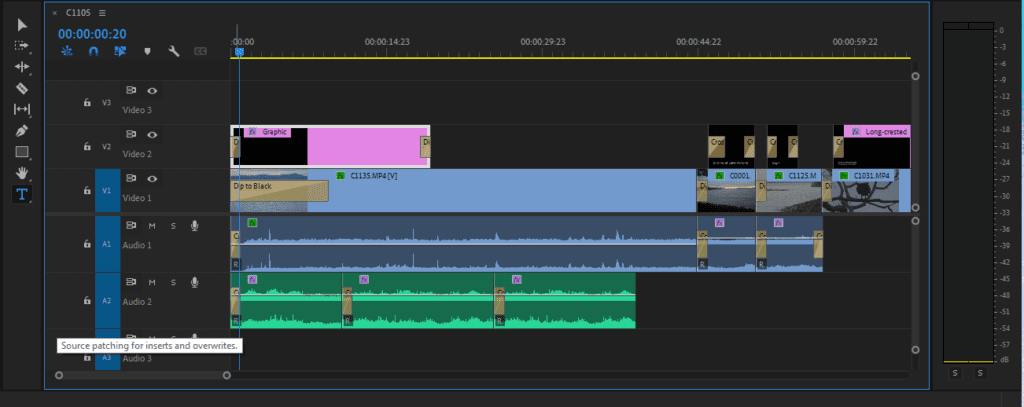
Premiere Pro uses a track-based timeline where it stacks audio and video tracks vertically. Each video, audio, text, and graphics element is a layer that you can stack, making for highly intuitive editing. You can manipulate multiple overlaid tracks, making it easy to arrange complex sequences with various elements.
The timeline in Premiere Pro is also highly customizable. You can expand and minimize tracks, add effects directly onto clips, and adjust audio levels from the timeline itself.
However, Premiere Pro is well-known for its heavy use of system resources. To combat this, proxy files are usually used, adding an extra step to your workflow.
Pros of Premiere Pro’s workflow:
- More intuitive and easy to learn, especially for editors who have experience with layer-based editing
- Highly customizable workspace where you can adjust your layout and tool configurations to match your editing style
Cons of Premiere Pro’s workflow:
- Can be overwhelming for beginners due to the many features and panels
- Can be demanding on system resources, leading to slower performance and increasing the need for proxy files
DaVinci Resolve
DaVinci Resolve also uses a track-based approach for timeline editing but offers a unique, node-based system for effects and color grading. While this is less intuitive at first, it offers a high level of control and flexibility once you get used to it.
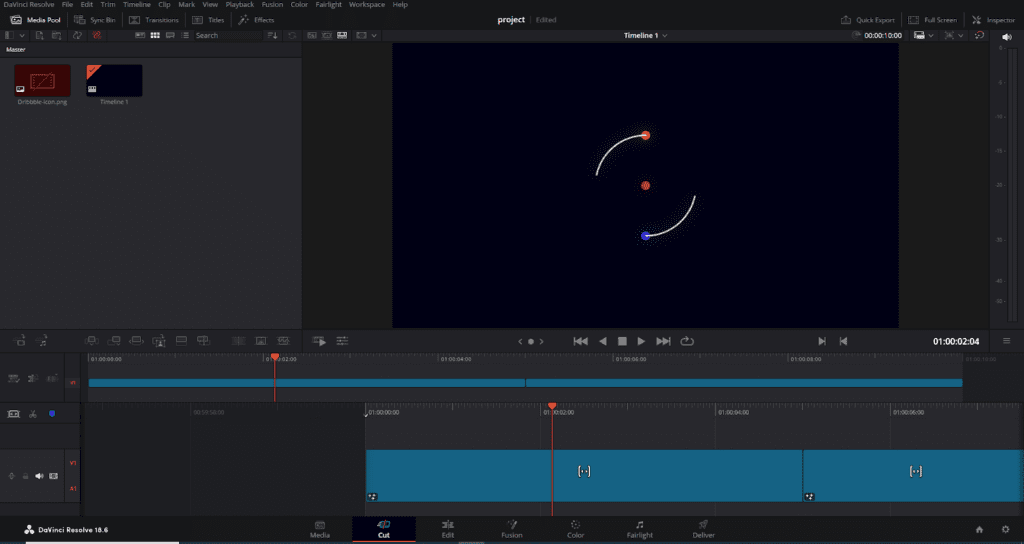
It’s structured around a series of pages, each representing a different phase in the post-production workflow. It’s like a production conveyor belt, guiding you through the editing process in a logical way. The pages include:
- Media Page: Import and organize your footage, audio, and other assets.
- Cut Page: Quickly assemble a rough cut.
- Edit Page: Perform detailed editing and fine-tune your project.
- Fusion Page: Add visual effects and motion graphics using a node-based compositing system.
- Color Page: Apply color correction and grading.
- Fairlight Page: Edit and mix audio tracks with professional-grade tools.
- Deliver Page: Export your final project in various formats and resolutions.
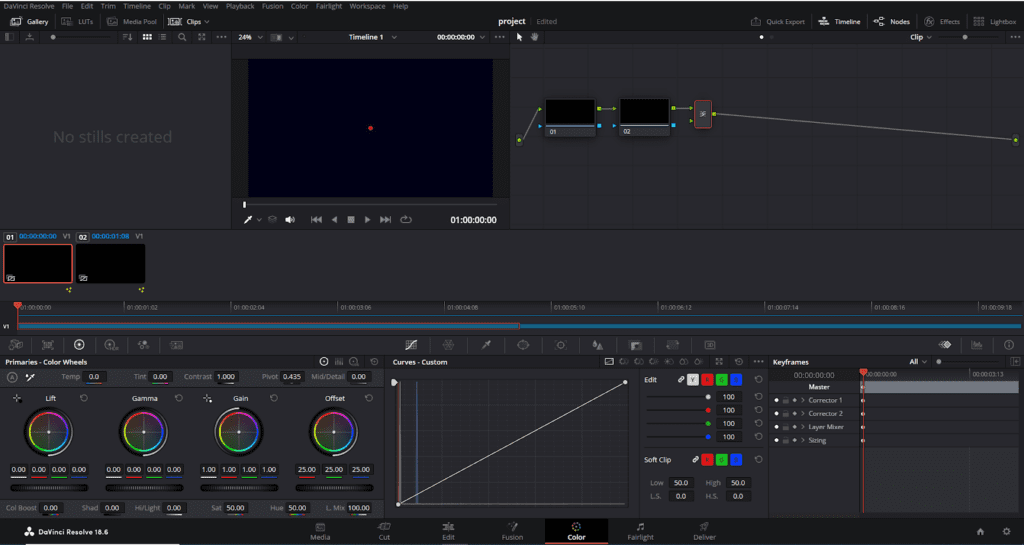
Resolve also uses an innovative dual timeline, where you can see a high-level overview and detailed view at the same time. You can then navigate and trim footage without needing to zoom in and out, speeding up your workflow.
Another benefit of DaVinci Resolve is that editing, color correction, visual effects, audio post-production, and motion graphics are all included in the main software. With Premiere Pro, you’ll need to switch to other apps like After Effects for motion graphics.
Pros of DaVinci Resolve:
- Dual timeline can enhance your workflow efficiency with simultaneous zoomed-in and zoomed-out views
- Better playback performance means you have less need for proxies
- Includes many features in the software, meaning you don’t have to switch between apps
- Fairlight acts as an all-in-one audio editing suite that’s more comprehensive than what you can do in Premiere Pro—for instance, it has AI-powered instrument isolation and an automatic dialog replacement (ADR) panel for dialog re-recording
Cons of DaVinci Resolve:
- The node-based tools, particularly for colors and effects, have a steeper learning curve compared with a track-based interface
- Unlike Premiere Pro, you can’t customize the interface layout
Note: If you’re considering DaVinci Resolve vs Premiere Pro, you might also want to check out how Premiere compares with Final Cut Pro, another popular video editing platform developed by Apple.
Ease of Use
User-friendly software is easier to learn and makes for a smoother, more productive editing process. That’s why it’s crucial to consider ease of use before deciding on video editing software.
Here are a few ways that Premiere Pro and DaVinci Resolve differ:
- Premiere Pro has a more customizable interface. With Premiere Pro, you can tailor the interface to your specific needs and get the software to work as you want it to. DaVinci Resolve is far less customizable, with limited layout options.
- DaVinci Resolve relies more on your GPU. Resolve leans heavily on graphics card processing for playback and effects. Premiere Pro uses the GPU too, but depends more on your CPU for tasks like encoding and decoding. If you have a high-end GPU, DaVinci Resolve might offer a better experience.
- DaVinci Resolve does it all. With color, video, audio, and effect editing tools in a single platform, you won’t need to switch between apps. To get the same functionality with Premiere Pro, you’ll need subscriptions to other standalone Adobe apps.
- DaVinci Resolve might be more stable. Both Premiere Pro and Resolve are resource-intensive apps, but Premiere has a bit of a reputation for being laggy and unstable—especially on lower-end PCs. However, there are some proven fixes to make Premiere Pro run faster.
If you’re new to video editing, both Resolve and Premiere Pro can be daunting at first. Both solutions offer a wealth of features and tools, and understanding how everything works can take a while. If you’re leaning towards learning how to use DaVinci Resolve, check out our guide on the basics and essential keyboard shortcuts to learn.
However, with customizable layouts, in-depth tutorials, and a more intuitive timeline format, Premiere Pro is one of the best video editing tools for beginners.
How difficult is DaVinci Resolve to learn vs Premiere Pro?
Both DaVinci Resolve and Premiere Pro are powerful and feature-rich tools, so you should expect a fairly steep learning curve for both systems.
Here are some things to consider:
- Premiere Pro has more user-generated learning resources. Premiere Pro has a much wider range of tutorials, online courses, and community forums which can help users get a grip of the software. For example, we’ve put together a Premiere Pro beginner’s guide to help new editors get the most out of the software.
- DaVinci Resolve offers official certification for free. Blackmagic Design offers official Resolve training materials and certification for free, while Adobe charges a testing fee to become certified with Premiere Pro. DaVinci Resolve also has a stack of training material, but fewer community resources—though it is seeing more support over time.
- Premiere Pro is more familiar to experienced editors. For anyone who’s worked with Adobe’s Creative Cloud applications, Premiere Pro is consistent and familiar. It also features a more traditional timeline layout, meaning that if you’ve used track-based editing before, you’ll be able to dive right in. In comparison, DaVinci Resolve might take longer to learn for an experienced editor, because it’s so different from other software.
- DaVinci Resolve offers multiple ways to accomplish the same task. With its different pages (Edit, Color, etc.) you can approach editing from different angles. Premiere Pro combines tools in a single workspace, making navigation straightforward but overall less versatile.
If you’re just starting, either software will have a similar level of difficulty to learn. However, if you’re transitioning from another track-based editor or have experience with Adobe’s software suite, then Premiere Pro will likely be much easier to learn.
One thing that can take a while to learn is the keyboard shortcuts, but they can really speed up your editing workflow. Both platforms offer customizable keyboard shortcuts that you can set up to match your preferences. Here’s a keyboard shortcut cheat sheet for Premiere Pro to get you started.
Features
DaVinci Resolve and Premiere Pro are both well-equipped video editing solutions with the industry-standard features you need to put together a video. This includes track-based timelines, audio mixing features, effects, graphics, and color correction.
Here are the features that set each platform apart.
Premiere Pro’s key features
Some of Premiere Pro’s most advanced features include:
- Text-based editing. Premiere Pro lets you edit video as if it were a text document. It can automatically transcribe your footage, letting you choose the parts you want to use. Premiere will then insert the matching part of the video into your timeline, helping you create a rough cut quickly.
- AI tone mapping. You can use Premiere Pro to analyze your clips and adjust the brightness levels and colors to match them together. This feature helps to correct your colors automatically, making it easier to work with footage from different sources.
- Essential graphics. This tool lets you access basic After Effects features directly within Premiere Pro. For example, you can create titles, graphics, and captions within Premiere. You can also use it to customize After Effects templates.
- Auto Reframe. When you’ve completed your project, you can use Auto Reframe to automatically reframe your video to different aspect ratios. It uses AI to work out what’s going on in the video and reframes it accordingly.
- Third-party integrations and plugins. Premiere Pro has a stack of third-party integrations that can expand its capabilities. You can also import a range of Premiere Pro plugins and templates to speed up your workflow. For example, with the Storyblocks plugin for Creative Cloud, you can search, preview, and download thousands of high-quality assets from the Storyblocks library, without leaving your editor.
DaVinci Resolve’s key features
DaVinci Resolve’s best features include:
- Famously powerful color correction tools. DaVinci Resolve is renowned for its color correction features and claims to have been used in more feature films and TV shows than any other system.
- Comprehensive post-production suite. Resolve combines editing, VFX, audio, and color correction into one software, streamlining the production process without multiple tools. This integrated approach can boost efficiency and offers total control over all post-production elements.
- Auto AI face detection. You can use AI to automatically identify and track faces in clips. You can use this feature to apply refinements like skin smoothing and color corrections to the face without extensive manual work.
- Multi-user collaboration. Blackmagic Cloud lets your entire team work on the project at the same time, reviewing each other’s work without introducing errors.
- Integrates with third-party software and plugins. You can extend Resolve’s capabilities with various open FX and audio plugins, as well as title and motion graphics templates. You can also import templates from Storyblocks’ extensive library which includes hundreds of powerful LUTs, animations, and transitions.
Thoughts from video editors
For a long time, Premiere Pro has been one of the most-used video editing solutions, particularly in the professional space. However, DaVinci Resolve is quickly gaining popularity, especially with up-and-coming video editors. And outside of the professional video editing space, Resolve is an excellent way to learn the basics of video editing—especially since it’s free.
YouTubers use both, with a slight preference for Resolve
In fact, 4 out of 5 of the YouTubers we interviewed about their preferred video editing software said they use Resolve as their main editor. Some decided to switch from Premiere to Resolve or use both interchangeably. Here’s what YouTuber Katie Steckly had to say:
“I’ve been a die-hard Premiere Pro editor for years—I’ve been using it ever since I started my YouTube channel in 2011. But recently, I’ve been learning DaVinci Resolve and I’m loving it! Premiere is great because I’ve gotten so fast in it over the years, but I’d heard lots of good things about Resolve so I had to try it out.”
Which one does she recommend? Ultimately, it boils down to preference. “At the end of the day though, [DaVinci Resolve and Premiere Pro] are pretty similar – so I think when it comes to choosing the editing software for you, it’s all about what you’re comfortable and efficient in,” says Katie.
It’s important to consider what you’ll need the software for. Are you creating videos with lots of animations and effects? If so, Premiere Pro might be the best choice, since it links so easily with After Effects, one of the industry-leading animation software.
Or are you trying to become a professional colorist? In this case, DaVinci Resolve Studio is likely a better option because of its advanced color grading tools.
Premiere is still the industry standard, but Resolve is gaining ground
In my opinion, Premiere Pro feels more intuitive—especially if you’re used to Adobe’s layout and track-based editing. I used it for a few years while making wildlife videos for YouTube as a hobby and got comfortable with the workflow.
But the cost savings of switching to DaVinci Resolve were hard to ignore, so I made the jump about a year ago. It was surprisingly easy to pick up, though the node-based workflow took a bit of getting used to.
However, I never use anything that advanced—mostly basic animations, transitions, and color grading. If you have different needs, your journey with these tools might take a different pathway.
Here are a few thoughts from Kyle Miller, one of our video editors here at Storyblocks:
“Every company is different, but I’ve found the majority still use Premiere Pro as their platform. I think we saw a big push to Resolve from many people because we saw a lot of unresolved issues with Premiere. It seems Adobe has been hearing these in recent years though, as many of them are being updated. A great example of this is auto-saving. Resolve has had this for a while, and to be honest Premiere’s implementation isn’t great, but it’s better than not having the feature at all. But Resolve is becoming far more popular for owner-operators and small production teams.
If you’re getting into editing today, I’d say that Premiere is essential to know. But if you’re someone who also films a lot of your videos, I’d probably push towards Resolve instead. The barrier to entry is low and it offers a free download with some restricted features. Plus, if you own a Blackmagic camera it often comes with a license key for the software as well. If you’re focusing on cinematography, you’ll want to learn Resolve so you can get the most out of the colors from your camera.”
Pricing and availability
DaVinci Resolve and Premiere Pro use different pricing models, with Premiere Pro being far more expensive to own over a long time.
DaVinci Resolve has a free version that offers a large portion of the platform’s features at no cost. The full version, DaVinci Resolve Studio, is available for a one-time purchase of $295.
In contrast, Premiere Pro is available by subscription only, under the following plans:
- $34.49 monthly
- $22.99 annual plan, paid monthly
- $263.88 annual plan, prepaid
Adobe also offers a 7-day free trial of Premiere Pro which automatically enrolls you in a subscription after the final day.
One major difference is that there’s no way to actually own Premiere Pro outright. You’ll always have to pay for a subscription if you want access, unlike Resolve which you can purchase for a one-time fee (with additional costs for plugins, updates, and support).
Note: Premiere Pro is available in a range of combination plans where you get access to other Adobe software on a subscription basis, too. For example, Adobe’s Creative Cloud All Apps plan is $59.99 per month and gives you access to over 20 different apps.
Additional costs for plugins, updates, or support
If you end up using either DaVinci Resolve or Premiere Pro for a long time, you’ll probably end up using plugins that add features or enhance your quality of life. Both DaVinci Resolve and Premiere Pro have a wide array of free and paid third-party plugins available at varying costs.
Neither solution charges an additional fee for updates or support. If you’re paying the Adobe subscription, or if you’ve paid Resolve’s one-time fee, all future updates are free.
Conclusion
When it comes to Premiere Pro vs DaVinci Resolve, it’s hard to choose a clear winner. Both are robust video editing platforms with unique strengths. Resolve has a compelling free version along with superior color correction tools, while Premiere Pro is more user-friendly for beginners and integrates with other, powerful Adobe software. Ultimately, the best choice depends on your specific needs and preferences.
If you’re an apple user, you can find our comparison of DaVinci Resolve vs Final Cut here, and our comparison of Premiere Pro vs Final Cut Pro here.
Regardless of which software you choose, Storyblocks can help you create professional-looking videos in less time. Sign up today to get unlimited downloads of high-quality stock footage, royalty-free music, templates for both Premiere Pro and DaVinci Resolve, and more. Plus, if you use Premiere Pro as your editor, you can bring our entire stock library right into Premiere with our plugin.
Editor’s note: This article has been updated with additional information. It was originally published on May 8, 2024.