While you can now download DaVinci Resolve for free, you might be surprised to learn that the highest-priced DaVinci Resolve system once cost as much as $800,000. Yes, nearly a million dollars. Back then, you didn’t have the option of choosing between DaVinci Resolve vs DaVinci Resolve Studio. That hefty price tag was due to DaVinci Resolve originally being bundled with hardware and software.
When Blackmagic acquired DaVinci Resolve in 2009, CEO Grant Petty aimed to change how DaVinci Resolve was delivered to the world. He explained, “When we bought that company the cheapest low-end system with hardware was $350,000 and the high-end system was $800,000. We went and changed the business model and made a Mac version and a Linux version. The software we sold for $1,000 and we sold more in the first month than had previously sold in the whole history of the business, which had been running since the early 80s.”
Since then, the cost of Resolve has been lowered even further. We’ve also seen many editing platforms experiment with pricing strategies—from a one-time purchase with incremental upgrade costs to the now-common subscription model. DaVinci Resolve, however, has taken a unique approach among video editing software. It offers a free version and a one-time $299 payment for the Studio Version.
But what exactly is included in these two versions? In this article, I’ll outline the differences between DaVinci Resolve Free and Studio to help you decide whether it’s worth paying for the full Studio version. And hey, we update this article annually. The information below outlines the differences between the two versions up to Resolve 21.
Key takeaways
- Resolution & Frame Rate: The free version supports up to 4K UHD at 60fps, while Studio supports up to 32K at 120fps.
- AI & Neural Engine: Studio unlocks powerful AI tools like Magic Mask, Face Detection, and Voice Isolation.
- Performance: Studio supports multiple GPUs and hardware-accelerated encoding (H.264/H.265) for faster rendering.
- Advanced Grading: Professional features like temporal/spatial noise reduction and full HDR (Dolby Vision) are exclusive to Studio.
- Cost: DaVinci Resolve is free; the Studio version is a one-time $295 fee and is often bundled with Blackmagic hardware.
Understanding the free version of DaVinci Resolve
Unlike comparing a 2016 Toyota RAV4 to a 2024 RAV4, where the newer model is very different, the free version of DaVinci Resolve is not a completely separate product from the Studio version. Instead, it has features that are either restricted or entirely inaccessible.
However, this doesn’t mean the free version is a watered-down, watermark-ridden iteration of the software. Out of the box, you’re still getting a fully-fledged editing suite that can easily handle most of the tasks a budding filmmaker might need. It’s no coincidence that YouTube has been filled with videos over the last five years from creators talking about why they are jumping ship from Premiere Pro to DaVinci Resolve.
It’s truly impressive just how much functionality the free version offers. For example, both the free and paid versions have multi-user collaboration on projects, with a chat function to boot. However, the paid version lets you access remote grading, monitoring, and sync markers and comments via Dropbox. If this were any other company, you probably wouldn’t have access to multi-user collaboration at all with the free version.
What’s even more impressive, however, is just how many additional tools and functions the studio version of DaVinci Resolve has. Let’s have a look.
DaVinci Resolve (Free) vs. DaVinci Resolve Studio
At a glance, here are some of the core features that are limited in the free version of Resolve.
(One thing to note is that 4K UHD is the maximum resolution for export; you can still import, edit, and grade larger resolutions in the free version; you just can’t export them.)
| Feature | DaVinci Resolve (Free) | DaVinci Resolve Studio |
| Resolution | Up to 4K UHD | Up to 32K |
| Frame rate (FPS) | Up to 60fps | Up to 120fps |
| GPU rendering | Yes, single GPU | Yes, multiple GPUs |
| HDR support | Basic support | Full support, including Dolby Vision and HDR10+ |
| Noise reduction | No | Temporal and Spatial Noise Reduction |
| Stereoscopic 3D Tools | No | Yes |
| Fairlight audio | Basic tools | Advanced tools, including Dolby Atmos and Auro-3D support |
| Neural Engine features | No | Yes (Magic Mask, Face Detection, etc.) |
| Remote grading | No | Yes |
| AI editing tools (v20) | No | IntelliScript, Multicam SmartSwitch, Animated Subtitles |
| AI audio tools (v20) | No | Voice Convert, IntelliCut |
| AI photo & finishing tools (v21) | No | Face Reshaper, Age Transformer, Blemish Removal, CineFocus, Motion Deblur |
| Photo page (v21) | Yes | Yes (with tethered Sony/Canon capture) |
| Media search | Standard | AI IntelliSearch (search by face, object, dialogue) |
If your first thought after looking through this list was, “What is Dolby Atmos?” then there’s no need to spend $295 on the Studio version of Resolve just yet. The key differences between the free and Studio versions primarily revolve around the program’s performance.
For example, while both versions utilize the GPU for processing, only the Studio version can harness multiple GPUs. Due to the free version’s power limitation, several features tucked behind the Studio paywall typically harness more GPU processing.
DaVinci Resolve Studio exclusive features
Last year, DaVinci Resolve 20 was released with a substantial update with 100 new features. While the free version received plenty of welcome additions, such as a dedicated keyframe editor (something I use all the time for digital pans and zooms), Safe Trim mode on the Cut page, a voiceover palette, Source Viewer timeline clips, vertical video UI optimization, and beat-detection editing.The buzz-worthy additions were almost entirely Studio-locked.
Below is a list of the features that you will only find in the Studio version of DaVinci Resolve. It’s worth noting that while they have been split between their dedicated pages, many of them, such as the Resolve FX, are accessible across multiple pages.
General edit and performance features
- Supports clean feed viewer mode on an additional display
- Frame.io integration
- Dropbox replay integration
- Create a timeline using an IMF or DCP Composition Playlist (CPL)
- Camera LUT in a node
- Supports AVCHD
- Supports Encoding AVC Intra 50, 100, and 200
- Supports External Scripting (JavaScript, LUA, and Python)
- Timeline and render resolution higher than UHD
- Timeline Frame Rates greater than 60fps
- Network, remote, and headless rendering
- Multiple Image-Processing GPUs
- Multiple Red Rockets
- CDL export
- HEVC decoding
- High 10 profile H.264 decoding
- IMF based renders
- Sony XAVC renders
- FusionFX:
- CCTV
- Drone overlay
- Camera tracker
- Lens distortion correction
- Match Move
- Stereoscopic 3D tools
- VR toolset
- Text-Based Editing and Audio Transcription (aka auto-subtitles)
- IntelliTrack
- UltraNR Noise Reduction
- Immersive 3D Audio with Ambisonic Surround Sound
- Auto Panning (IntelliTrack-powered)
- Music Remixer FX
- Dialog Separator
- Voice Isolation
- AI IntelliScript
- Drop in a TXT, SRT, or VTT file, and Resolve builds a rough timeline based on the spoken words
- AI Multicam SmartSwitch
- Automatic camera switching between angles based on who’s speaking
- AI Animated Subtitles
- Generates voice-synchronized animated captions with smart styling
Color
- HDR:
- Dolby Vision support
- HDR10+ support
- HDR metadata and mastering
- HDR Scopes for ST.2084 and HLG
- HDMI 2.0a metadata
- Node in HDR
- Gamut mapping
- Neural Engine (Resolve’s AI Engine):
- Deinterlacing
- Face detection
- Magic mask
- Object removal
- Scene cut detection
- Smart reframe
- Retime – Speed Warp – Optical Flow
- ResolveFX:
- Abstraction
- Alpha Matte Shrink and Grow
- Analog Damage
- Aperture Diffraction
- Automatic Dirt Removal
- Beauty
- Camera Shake
- Chromatic Aberration Removal
- Chromatic Adaptation
- Color Compressor
- Color Palette
- Color Stabilizer
- Contrast Pop
- DCTL
- Dead Pixel Fixer (Improved)
- Deband
- Deflicker
- Dehaze
- Detail Recovery
- Dust Buster
- Face Refinement
- False Color
- Film Grain
- Halation
- Lens Blur
- Lens Distortion
- Lens Flares
- Lens Reflections
- Motion Trails
- Patch Replacer
- Pencil Sketch in DaVinci
- Sharpen
- Sharpen Edges
- Smear
- Soften and Sharpen
- Stylize
- Texture Pop
- Tilt-Shift Blur
- Warper
- Watercolor
- UltraNR Noise Reduction
- Film Look Creator
- Chroma Warp
- An extension of the Color Warper that lets you reshape hue and saturation in context
- Magic Mask v2
- An update to the already amazing brush-based masking with significantly better edge detail on faces, arms, and clothing
- AI Super Scale 3x and 4x
- The upscaling tool now goes further, with customizable sharpness and noise reduction controls
Fairlight
- Fairlight B-Chain Support for Audio Monitoring
- Fairlight Format Support for Auro-3D
- Fairlight Format Support for Dolby Atmos, MPEG-H, and SMPTE ST.2098
- Supports 96 KHz and 192 KHz Sample Rates at a project level
- Power Mastering
- AI Voice Convert
- You can change a speaker’s tone, gender, or clarity using deep learning voice models, ideal for ADR or voice replacements
- IntelliCut
- Automatically removes silences, splits tracks by speaker, and generates ADR cues, turning hours of manual cleanup into minutes
Fusion
- Deep Image Compositing
- There is proper Z-depth and alpha-aware compositing of 3D passes, allowing realistic layering of overlapping visual elements
Delivery
- AMD-accelerated Decoding of H.264 and H.265
- Hardware Accelerated Decoding of H.264 and H.265
- HEIF Decoding on Windows 10 and Linux OS
- IMF-Based Renders
- Kakadu JPEG 2000 Renders over 2Kx2K
- Noise Reduction (Temporal and Spatial)
- Remote Grading and Rendering
- Export of a wide range of Gallery Still Formats
New Studio-only AI tools added as of version 21
One of the primary talking points for creatives over the last few years is AI tools: are they a blessing or a curse? Well, as of Resolve 21, many new AI tools have been added to the software. These are locally based tools, meaning they don’t use cloud-based systems like many other platforms, so you can edit offline, and no data is transmitted. However, given the amount of processing power required, they are locked behind the studio version.
- AI Face Reshaper
- Adjusts the eyes, nose, mouth, eyebrows, and overall face shape on a tracked subject
- AI Face Age Transformer
- Adds or removes age-related features such as wrinkles and facial fullness
- AI Blemish Removal
- Reduces skin imperfections like acne
- AI CineFocus
- Defines the focal point of a shot in post, with adjustable aperture and bokeh shape
- AI Motion Deblur
- Recovers detail from motion-blurred footage
- AI UltraSharpen
- Upscales low-resolution images, designed primarily for the Photo page
- AI IntelliSearch
- Searches your media by content, objects, dialogue keywords, or even individual faces (similar to how your Apple photos may work)
- AI SlateID
- Automatically reads and logs slate data
- AI Speech Generator
- Generates speech from written text using Blackmagic’s voice models, or clones a unique voice from as little as a 10-second clip
There’s also tethered camera capture for Sony and Canon bodies on the Photo page, which is Studio only.
New tools in both editions of Resolve 21
Now, it’s worth noting that there are also a few tools that both editions get:
- The new Photo page itself
- Native .lottie file support for drag-and-drop animated graphics
- The Krokodove compositing toolset, adding 70+ new graphics to Fusion
- Fairlight folder tracks for simpler audio track management
- MultiMaster trim passes and group versions on the Color page
- Expanded immersive and VR workflow support, including foveated rendering for Apple Vision Pro
However, since Resolve 21 is still in beta, some of these may end up as Studio-only features when the full release lands later this year.
If you were undecided about buying the studio version of DaVinci Resolve, seeing just how much is locked behind the studio license might already have you searching for a credit card. But do you need all those additional features?
Which version of DaVinci Resolve is right for me?
One of the best things about Blackmagic Design as a company is that it keeps its customers’ best interests in mind. Someone creating a 60-second presentation video for their startup won’t have to pay for the studio version just to export their video.
While the list of features included in DaVinci Resolve Studio seems endless, it’s important to note that many of these features are tools that professional and working editors will need. If you’re planning to use Resolve for creating an Instagram Reel, a short film to post on YouTube, a music video shot on a mirrorless camera, or a travel vlog, you’ll probably never need to use the studio-only color features.
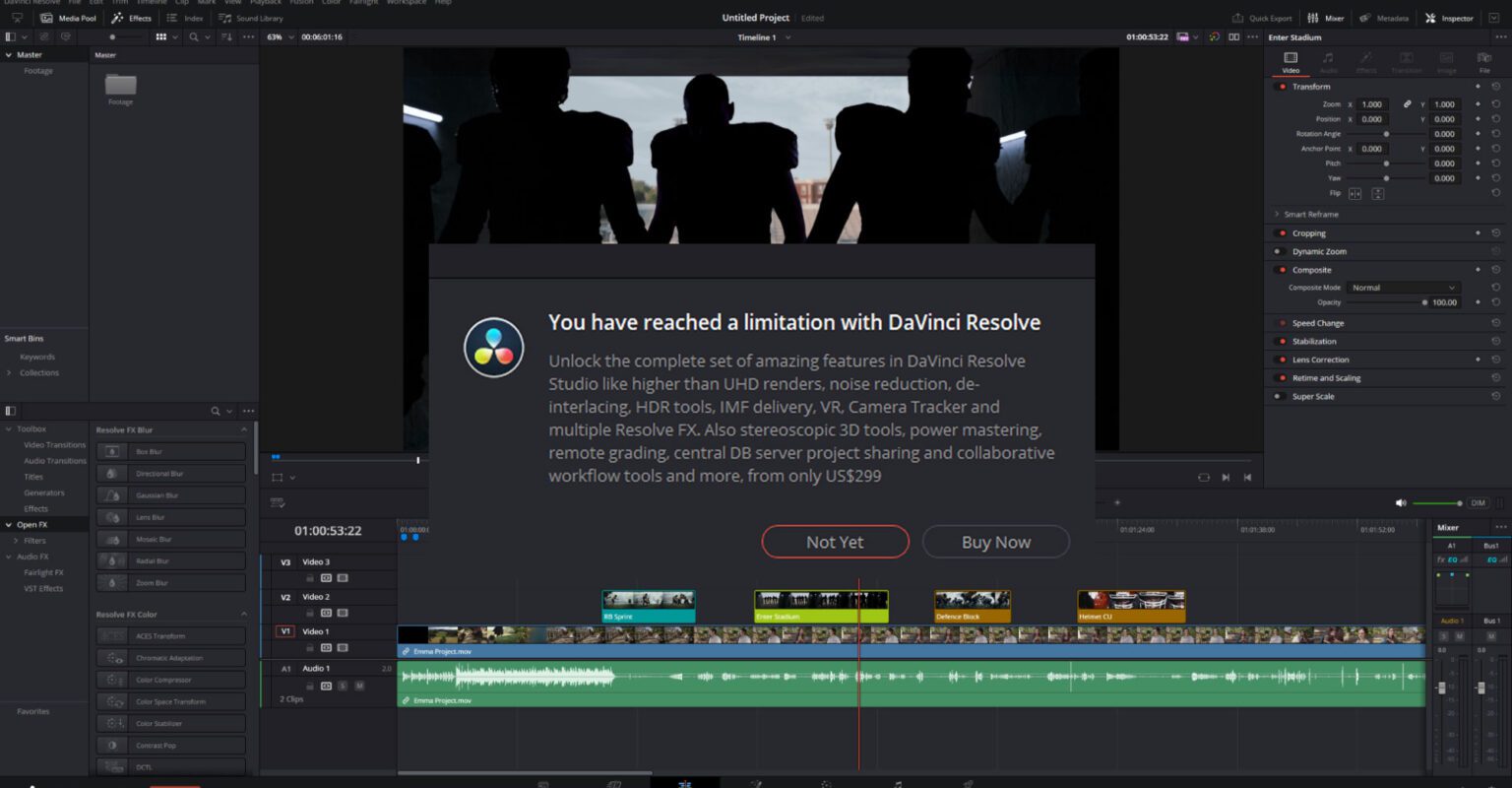
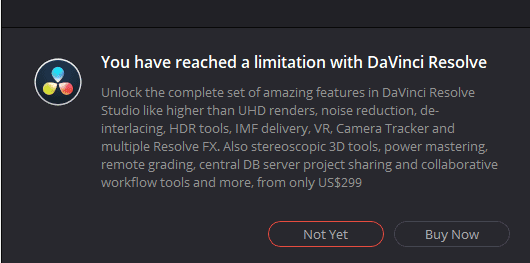
What’s so great about the free version of DaVinci Resolve is that you can essentially test-drive the software until you know whether you need the studio version. If you’re editing and keep seeing the “Ready to Upgrade?” pop-up, it’s a clear sign that you’re bumping up against the limitations of the free version. But if you rarely see this pop-up, is spending $295 worth it? Probably not.
A good analogy is something I’ve struggled with throughout my career: the constant urge to upgrade to the next best camera. You should only upgrade your equipment when you genuinely need to, not just because a company suggests you should or because you’re tempted by the best new thing. For example, if you’re on a shoot and find that your camera struggles in low light, upgrading to one with better low-light performance or lower ISO sensitivity would make sense. Similarly, if you’ve been hired for a sports shoot and need slow motion at 240 frames per second, but your camera only handles 60, that’s when it’s time to upgrade.
The same principle applies to DaVinci Resolve. The free version offers plenty of features for most content and video creation needs. You should only consider upgrading when you start feeling held back by the studio-exclusive features.
And here’s something else to consider: with most Blackmagic products, the studio version is often included, whether it’s bundled with new cameras or hardware, so you might not have to spend $295 on a separate software license. If you’re considering investing in something like the latest Ursa 6K, the studio version will likely come with it.
Also, one of the most important things to remember about DaVinci Resolve is that it’s a one-time purchase. In a world where much creative software has gravitated towards subscription-based pricing that only keeps increasing, Resolve has been $295 for as long as I can remember, and you’ve never had to pay to update to the latest version. So if you are coming from Adobe Premiere Pro, for example, then over the course of a year, paying the studio license for DaVinci Resolve is already a cheaper option.
Work faster in Resolve with customizable templates
Blackmagic doesn’t set you up for failure as other software companies do. Their free version offers so much functionality that trying the software before deciding to buy is simple and straightforward. But with Storyblocks, you might find yourself in an even better position with just the free version of DaVinci Resolve.
Thanks to our vast collection of DaVinci Resolve templates, you can create and implement a variety of transitions and effects in your projects without needing to own the studio version. With the free version of Resolve and a Storyblocks subscription, you can easily achieve professional results without breaking the bank.