Premiere Pro and After Effects are essential tools in Adobe’s creative suite that serve very different purposes.
Premiere Pro is Adobe’s professional editing software. It helps you assemble footage and manage most of the post-production workflow. Whereas After Effects goes beyond basic editing, focusing on more complex work like motion graphics and compositing.
In this article, we’ll explain how the two programs differ in detail, what each one does best, and when to use After Effects vs Premiere Pro.
Premiere Pro vs After Effects at a glance
| Premiere Pro | After Effects | |
| Primary use | Video editing | Video compositing |
| Best for | Cutting footage, syncing audio, adding transitions | Animation, motion graphics, VFX, rotoscoping |
| Learning curve | Moderate – easier for beginners | Steep – better for intermediate to advanced users |
| Templates | ✓ | ✓ |
| Integration | Plugins and extensions for lots of software and programs | Plugins and extensions for some software and programs |
| Real-time editing | Yes – designed for linear editing | Not ideal for real-time edits |
| Audio editing | Robust tools for syncing, mixing, and track management | Basic tools |
| Pricing | Equal to AE, available via Adobe subscription | Equal to PP, available via Adobe subscription |
Premiere Pro: The go-to video editor
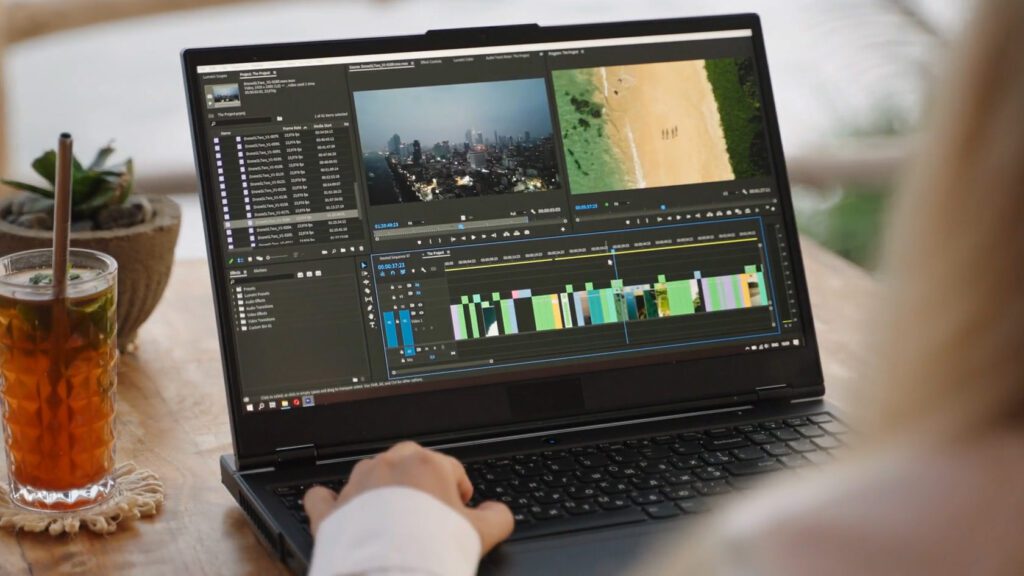
Premiere Pro is Adobe’s editing software for assembling video projects. It gives you a timeline-based workspace where you can cut your raw media into a polished final product.
While After Effects can technically do many of the same things, it isn’t optimized for playback or fast editing—that’s where Premiere shines.
As Kyle Miller, Manager of Video Production at Storyblocks, puts it, “Premiere Pro is your go-to for editing—a non-linear editor built for cutting together scenes, organizing clips, and building full videos.”
Here’s what Premiere Pro does best:
- Multi-track editing: Stack video and audio layers in your timeline to work on both at the same time.
- Trimming and sequencing: Cut scenes together and split clips without disrupting the rest of your edit.
- Audio syncing and cleanup: Sync audio with your footage and fix common problems like levels or hissing.
- Motion adjustments and basic effects: Reposition or resize clips using keyframes when you need simple animation or framing changes. Add simple text effects using the built-in text editor.
- Color correction: Color grade footage between shots or apply consistent color correction using the Lumetri Color panel.
- Multi-cam editing: Switch between camera angles from a synced source in real-time.
Premiere Pro gives you a clean, flexible workspace for editing. It’s where most editors spend the majority of their time before moving into effects or animation.
After Effects: The VFX and motion graphics powerhouse
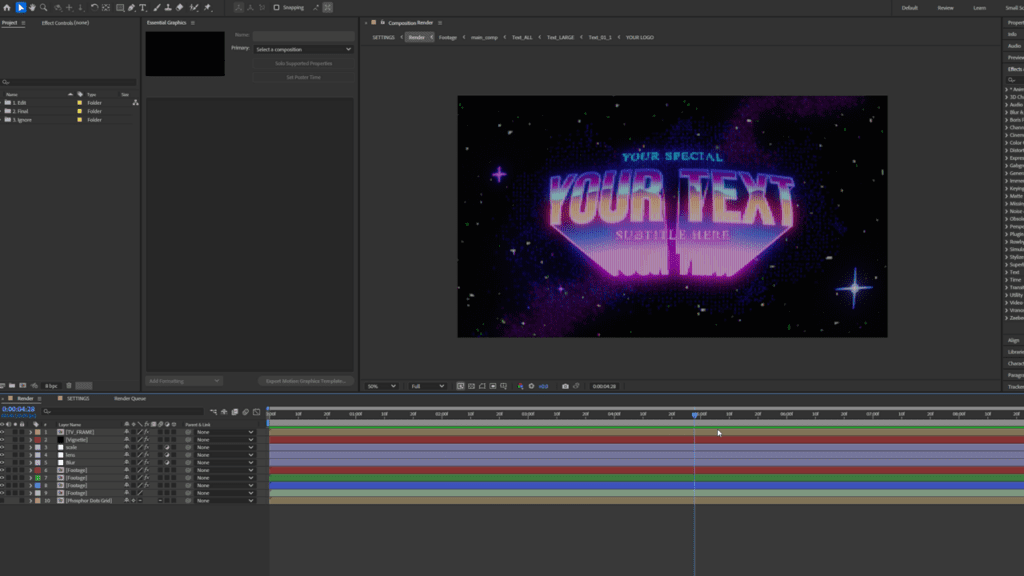
After Effects is built for animation, compositing, and shot-level visual work, making it the better tool for motion graphics artists and VFX specialists. While editors work in Premiere to assemble full videos, After Effects focuses on what goes inside each shot.
As Kyle Miller explains, “After Effects is more of a compositing and motion graphics tool. You’d use it for visual effects, animated graphics, or anything that requires fine control over a single shot.”
What After Effects does best:
- Motion graphics. Design animated titles, lower thirds, and visual elements from scratch.
- Visual effects. Add, remove, or blend objects into a scene using multiple layers and masking effects.
- Compositing. Combine footage, graphics, and effects into a single shot with full control over each element.
- Tracking and stabilization. Match movement between layers or smooth out shaky footage with built-in tracking tools.
- Rotoscoping and masking. Isolate parts of a frame to apply selective effects and remove backgrounds.
After Effects lets you create visuals that aren’t possible in a traditional editor like Premiere. It’s the next step when your project needs more than a basic edit.
As filmmaker and freelance video editor Lewis McGregor puts it, “While After Effects and Premiere Pro share a vast number of similarities, like their user interface, integration with third party tools, and downloadable templates, the two of them aren’t necessarily that comparable if you need to choose one or the other.”
Now, let’s dive into the key differences outside of their overall function.
After Effects vs Premiere Pro: Difference in learning curve
Premiere Pro is easier to pick up. You can learn the basics in a week or two with consistent practice. The timeline-based editing is intuitive for beginners, and there are many resources available online (check out Storyblocks’ in-depth guides and Premiere Pro templates).
Meanwhile, After Effects takes more time to learn. Even simple tasks like animating text require you to understand keyframes, layers, and rendering workflows. You’ll spend longer watching tutorials and experimenting with After Effects templates before you’re confident.
That said, if you already know Premiere, the transition is smoother. The interface has a similar layout, and some built-in tools work almost identically. It’s also well-supported by online resources, particularly on YouTube.
After Effects vs Premiere Pro: Cost and compatibility
Both Premiere Pro and After Effects are part of Adobe’s Creative Cloud and cost the same whether you pay monthly or annually. You can subscribe to each app individually or access both through the full Creative Cloud plan.
Since they’re both Adobe tools, they integrate well together. You can send clips from Premiere to After Effects, edit them, and see updates instantly—no need to export.
They’re available on both macOS and Windows. However, After Effects requires more from your system. It runs best with more RAM and a powerful GPU, especially when creating complex compositions.
You can check the full system requirements here:
How Premiere Pro and After Effects work together
With Adobe’s Dynamic Link, it’s easy to jump between the two programs when you need to. It lets you move clips between the two without exporting and reimporting files.
You can send a clip from Premiere to After Effects for animation, then return to Premiere and continue editing with the updated version already in place. The same applies in reverse: you can bring an After Effects composition into Premiere and see changes update automatically.
This workflow reduces file duplication, saving you time and hard drive space. It’s useful whether you’re collaborating with a motion designer or managing the entire project yourself.
Should you use After Effects or Premiere Pro?
You don’t always need both tools. Knowing when to use After Effects vs Premiere Pro depends on what kind of work you’re doing. For many editors, Premiere is enough—and the same goes for VFX artists with After Effects. Editors who wear many hats might want to invest in both.
Choosing which one to learn or use is kind of like picking a starter Pokémon, says Lewis McGregor. “It really depends on what line of work you want to head towards,” he explains. “If it’s video editing, then Premiere Pro is your choice. If you also intend to incorporate motion graphics or VFX into your toolkit, then add After Effects to your subscription package.”
Here’s a quick look at which program is best for you, depending on what type of creator you are.
If you’re a content creator or YouTuber
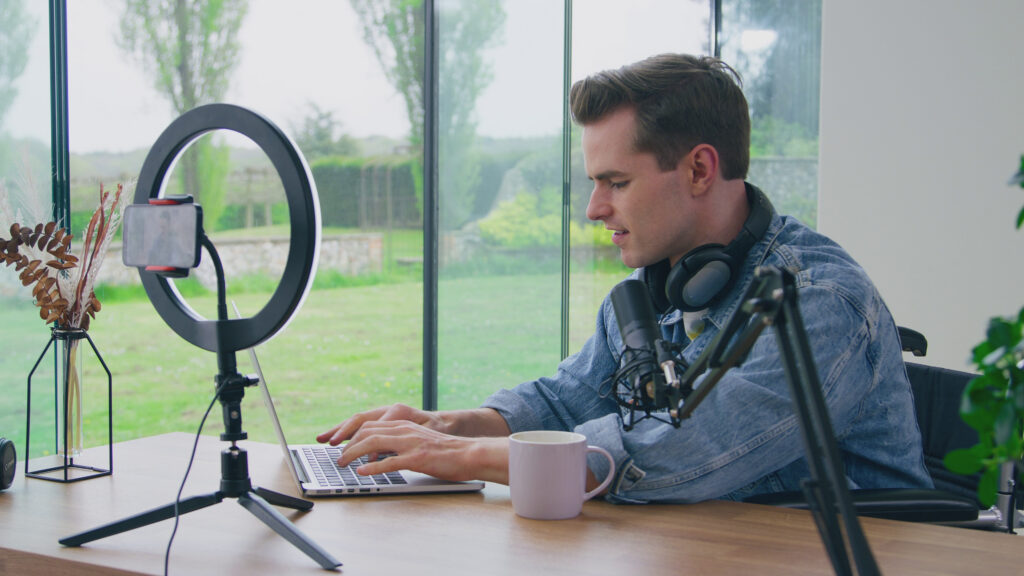
Learn Premiere Pro first. It covers everything you need for cutting vlogs and getting your video out the door quickly. Many YouTubers rely on Premiere for their entire editing workflow.
You can always dive into After Effects if you want to start adding more to your work—it really boils down to the kind of content you want to make. If your videos are mostly talking to the camera or simple edits, you probably won’t need it.
Kyle Miller sums it up nicely; “Premiere has a few light compositing tools built in, but the second you need custom graphics, VFX, or layered animations, you’re in After Effects territory.”
Keep in mind that After Effects takes more time to master, so it depends on how often you’ll use those features. If you want to add a few effects occasionally, it might make more sense to hire a VFX artist on a per-project basis.
If you’re a filmmaker
Premiere Pro is essential. It’s where you’ll cut scenes, manage audio, build timelines, and prep for final delivery.
As before, After Effects is worth learning if your work involves shot-specific effects—like screen comps or set extensions. You won’t need it for every project, but it’s a useful tool when you’re working with VFX or planning visuals that go beyond what was captured in-camera.
If those needs are rare, you’re often better off hiring someone to handle that part of the workflow. It’ll save time and let you stay focused on the cut.
If you’re a video editor or pro
You’ll need to learn both. Editing tools aren’t just about finishing a project—they’re part of your value as a professional. Knowing Premiere Pro gives you a strong foundation in timing, structure, and audio. After Effects adds the skills clients increasingly expect, like titles, lower thirds, motion tracking, and visual cleanup.
“If you’re just getting started, learn Premiere Pro first—it teaches you the fundamentals of editing, pacing, and storytelling. But the reality is, modern video—especially short form—almost always involves some level of motion graphics, whether it’s titles, captions, or logo animations. If you’re a freelancer or content creator working on digital platforms, it’s essential to know both. After Effects doesn’t have to be intimidating—start with keyframes and basic layering, and build from there.” – Kyle Miller, Manager of Video Production at Storyblocks
Choose the right software for you
Don’t think of it as Premiere Pro vs After Effects—think of them as different parts of the same workflow. Use Premiere to cut footage and manage the structure of your edit, then move into After Effects when you need more control.
If your edits are simple, Premiere will cover everything you need. But if you want to add layered effects or build custom animations, After Effects opens that up.
Regardless of which one you choose, Storyblocks’ Adobe plugin works with both. You’ll get access to over 7 million stock assets and ready-made, customizable templates for both After Effects and Premiere Pro that help you work faster and get better results.
Editor’s note: this article was originally published July 3, 2019 but has been updated to reflect current information.