Like comparing Premiere Pro to DaVinci Resolve, After Effects and DaVinci Resolve share many similarities and can produce similar results. However, their strengths lie in different areas. For example, Resolve’s Fusion workspace is stronger as a compositor with a node workflow more conducive to VFX work, whereas After Effects is more foundational to motion graphics and design.
Much like choosing your starter Pokémon, the post-production software you choose can significantly impact your journey, including your skillset and career opportunities. In this article, we’ll compare DaVinci Resolve (version 21, released June 2026) and After Effects (version 26.2) based on workflow, ease of use, specs, and more.
DaVinci Resolve Fusion vs After Effects: Core comparison
| DaVinci Resolve (v21) | After Effects (v26) | |
| Workflow | Node-based, static workspace with cleaner layout | Layer-based, customizable workspace that can become cluttered |
| Ease of use | Steeper learning curve, but more intuitive | Simpler learning curve |
| Rotoscoping | Magic Mask is a powerful rotoscope tool, plus new AI IntelliTrack for tracking and stabilization | Roto Brush 2.0 is quick, plus new AI Object Matte tool |
| Motion graphics | Functional but slower and more limited than AE | Industry standard, unmatched tools, and ecosystem |
| Animation | Works best as part of larger composites | Ideal for 2D rigging, puppet animation, and expressions |
| AI features | AI IntelliSearch, CineFocus, IntelliTrack AI, Voice to Subtitle, uTalk, Color Slice | AI Object Matte, Content-Aware Fill, Roto Brush 2.0 |
| Resources and supports | Growing but still a smaller community with more limited selection of templates, plugins | Decades of tutorials, plugins, and templates |
| Specs | GPU-intensive | CPU-intensive |
| Pricing | Free version available along with one-time Studio upgrade | Monthly or annual subscription only |
Before we compare DaVinci Resolve and After Effects, we need to talk about the two versions of Fusion that Blackmagic offers for VFX and motion graphics work.
A Note on Fusion vs. Fusion Studio
Fusion Studio is a standalone application that retails for $295. The Fusion page is the compositing workspace built into the free version of DaVinci Resolve, sitting alongside the Cut, Edit, Color, Fairlight, and now Photo pages.
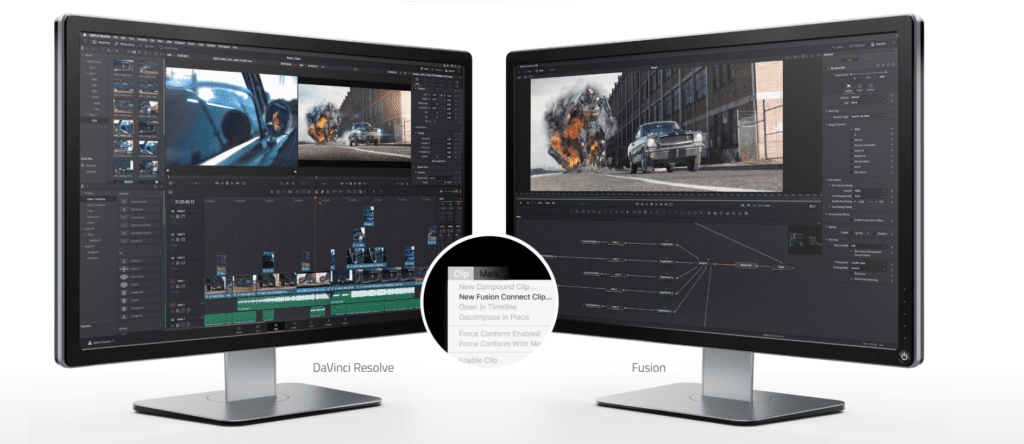
Blackmagic maintains a full feature comparison between the two software programs. The list is extensive, with over 300 features compared, and the overlap is significant. It’s only when you reach more advanced capabilities, such as rendering one comp while working on another, network rendering, or WAV audio playback for timing, that Fusion Studio pulls ahead.
If your goal is to strengthen your DaVinci Resolve skills rather than become a dedicated VFX artist, the built-in Fusion page is more than enough. The Fusion page is the version we’ll be focusing on throughout this article – not Fusion Studio.
Workflow
The most significant difference between these two programs isn’t the tools – it’s how you build a composition. Everything else flows from this.
After Effects’ layer-based system
In After Effects, you composite using a layer-based system, where you stack each component on top of the others. The layers are read in descending order, meaning the layer at the top of the stack is typically shown above the others in the composition window. Of course, some layers might use different blend modes, serve as matte layers, or have reduced opacity, but for the most part, it works in a straightforward top-down visual hierarchy.
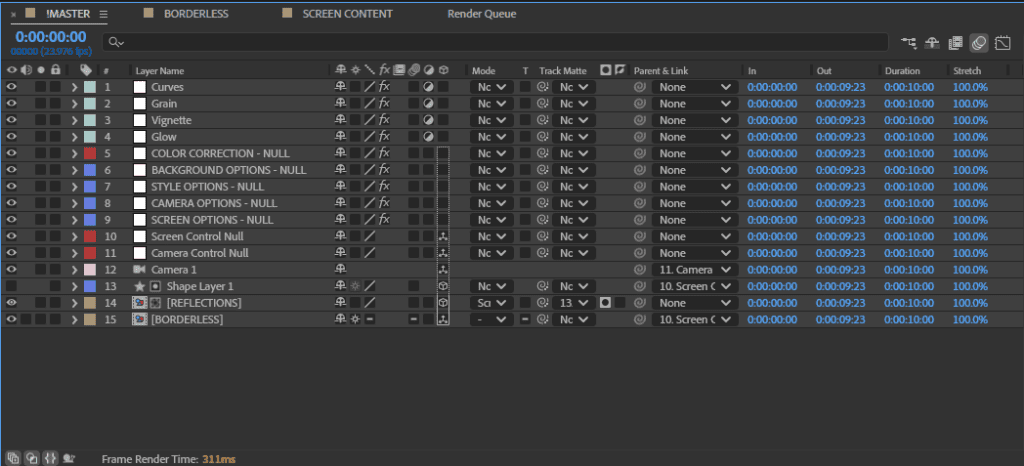
Layer-based compositing is similar to how old animations were created before digital tools. This was called cel animation, where characters were drawn on transparent plastic sheets (cels), painted, and placed over a painted background. The animators would then swap the cels frame-by-frame to create the animation.
After Effects’ layer-based system is similar in this regard. As a result, the layer structure is a fantastic choice for motion design or animation, as we can visually see how the layers interact with the overall animation.
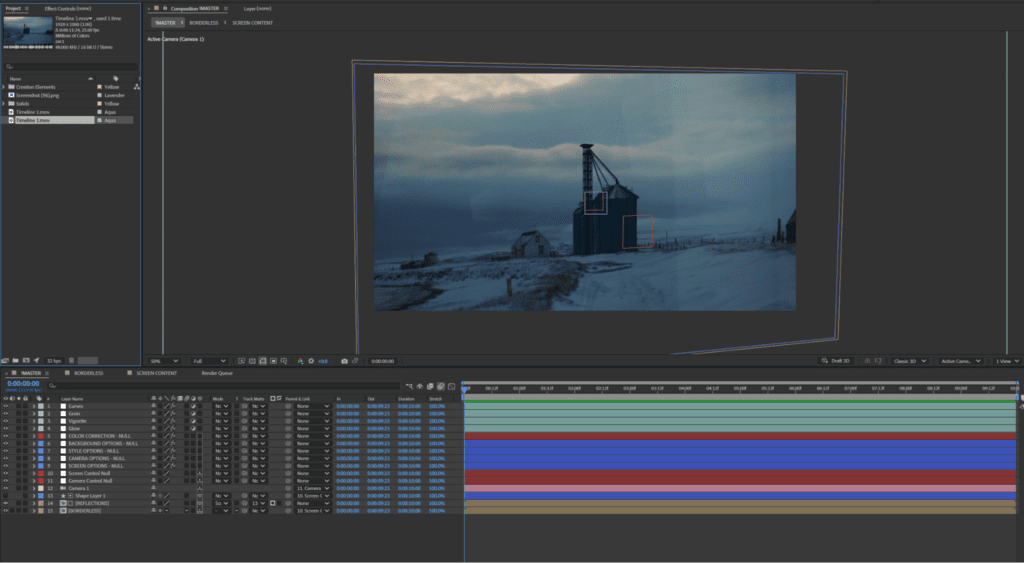
In After Effects, any effect or transformation you apply to a layer doesn’t appear visually in the UI until you click on that layer. This gives you a much cleaner interface for viewing all your work.
The tradeoff is complexity at scale. Effects and transformations only appear in the UI when you click a specific layer, which keeps things tidy for small projects. But on a complex comp with dozens of layers and multiple effects per layer, it’s easy to lose track of what’s doing what.
Fusion’s node-based workflow
The Fusion workspace in DaVinci Resolve, on the other hand, uses a node-based workflow. If you’ve only worked with Adobe software, your first look at a node graph can feel like being dropped into a cockpit mid-flight. The learning curve is real – definitely has a steeper than After Effects. But once you learn how to read a node flow chart, it often feels more intuitive than using a layer-based system.
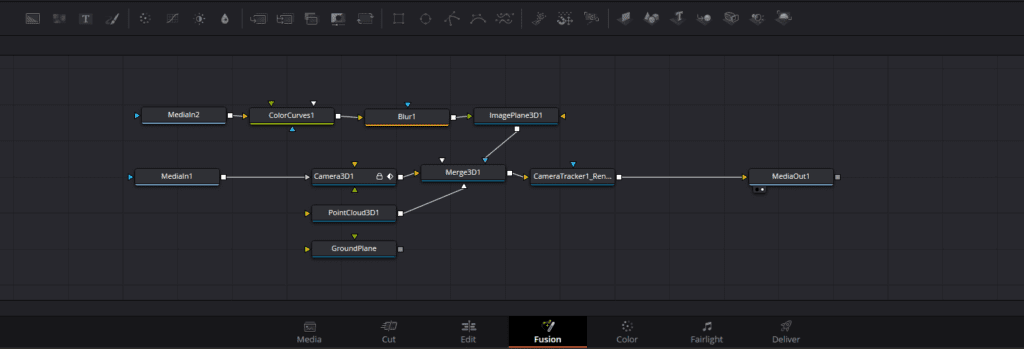
If you’re already a DaVinci Resolve user who does color grading within Resolve’s Color page, you will already be familiar with the node-based approach. While the keyboard shortcuts and interface of the Fusion page differ slightly from those of the Color page, the underlying premise remains the same.
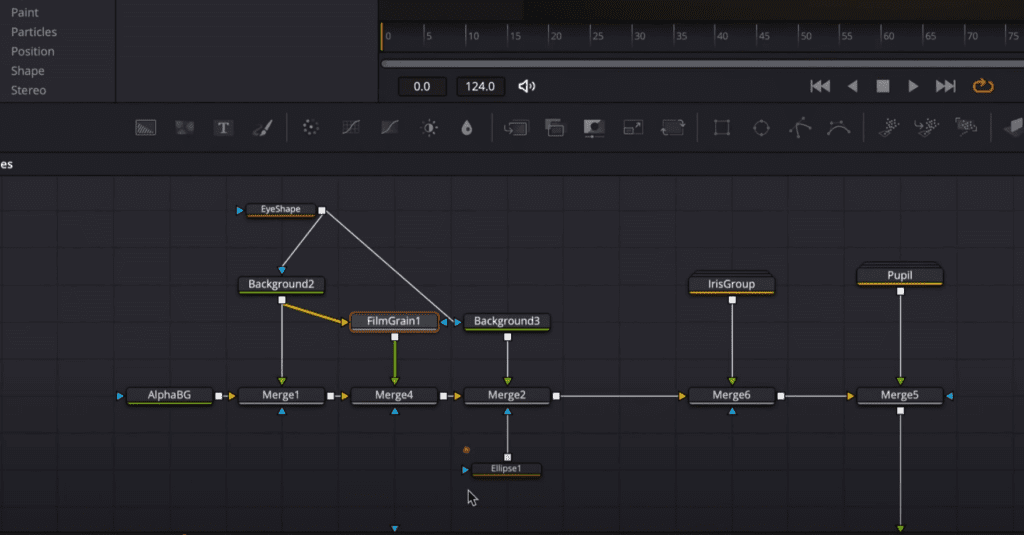
A node flowchart is read from left to right. You have your input node on the far left and your output node on the right (as on the Color page). For every effect you apply, one node gets added to your flowchart.
One effect is easy to read. But the structure can quickly become complex when you apply multiple effects or transform properties between nodes. At that point, the flow becomes less linear and more of a subway map.
Pros and cons of each workflow
| After Effects | Fusion | |
| Strengths | Visual, intuitive for motion design; easy to see the overall animation | Cleaner for complex VFX; effects are reusable; no stacking mess |
| Weaknesses | Gets cluttered fast; duplicate effort on multi-layer effects | Steeper initial learning curve; less intuitive for animation |
| Best for | Motion graphics, title design, 2D animation | Heavy compositing, VFX, green screen, 3D integration |
Here’s a practical workflow example to illustrate the different workflows between Fusion and After Effects. Let’s say you drop in some footage and apply lens distortion. In After Effects, that’s one effect on one layer. Simple enough. But what happens when you want to add a second clip or layer that needs the same distortion?
In AE, unless you precomp both layers (which feels unnecessary and clunky), you’ve now got two layers with two separate lens distortion effects. Want to tweak the distortion? Now you’re making the same adjustment twice. Of course, you could also add an adjustment layer, but this is only viable if working with the bottom two layers.
In Fusion, the same lens distortion effect is available as a standalone node. You can connect both clips to it. One change, done. Clean, efficient, no jumping back and forth between layers. And when you start adding more effects and more operations, the benefits start to multiply. It’s a different mindset, but once it clicks, you can see why CGI software uses a node-based workflow.
Ease of use
Do you prefer customization or ergonomics in the user interface? After Effects and DaVinci Resolve handle UI very differently.
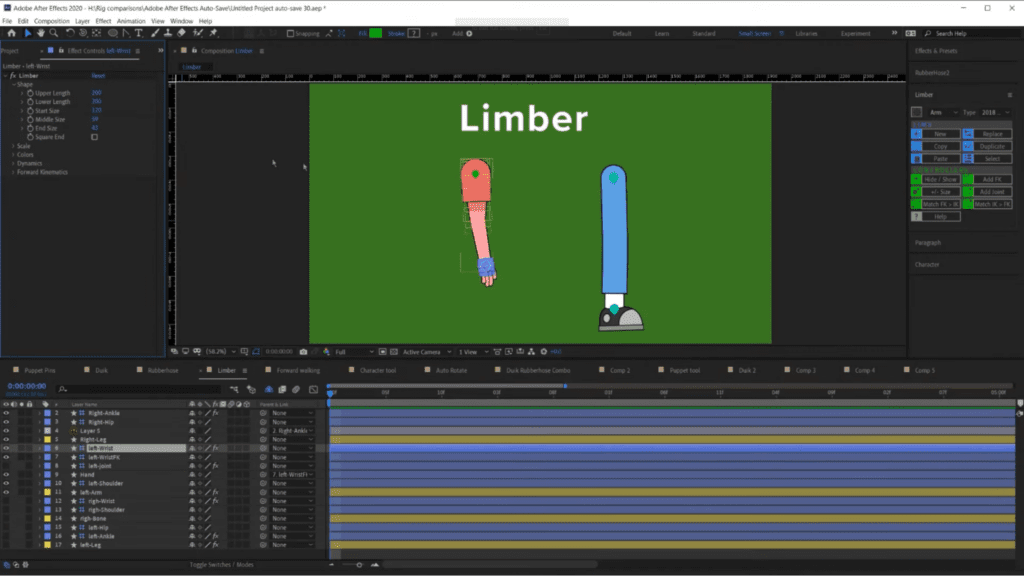
Like many other Adobe applications, After Effects is entirely customizable. You can extend panels, rearrange and undock them, and even add new areas through scripts and plugins.
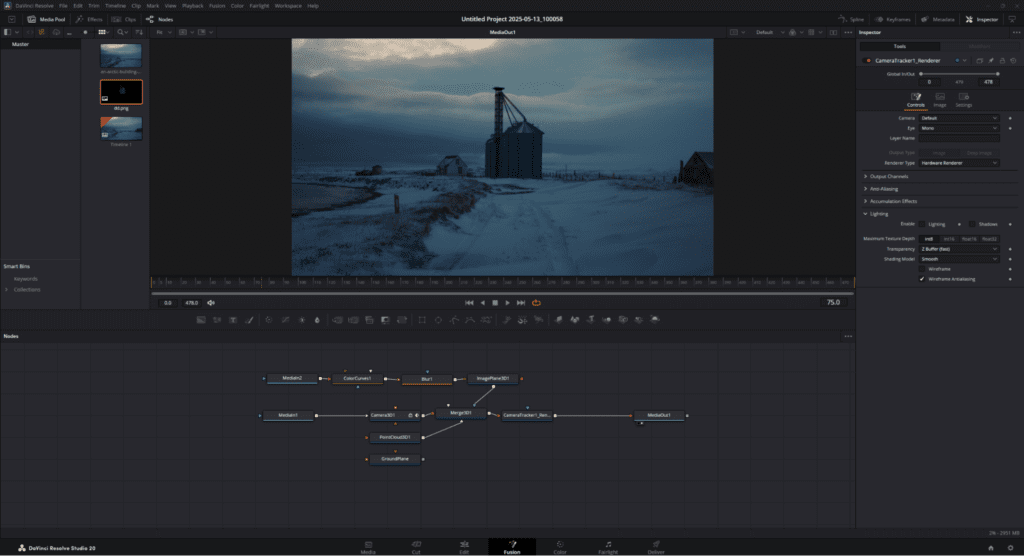
Fusion takes the opposite approach. Like the rest of DaVinci Resolve’s pages, the layout is largely fixed. You can expand the node graph and preview panels, and show or hide secondary panels, but you can’t rearrange the core interface.
For some, this feels limiting. For others, it’s a relief. Everything has a designated place, and the workspace stays predictable regardless of how deep you go into a project.
Depending on your work, that could be a limitation or a blessing. Personally, there have been countless times in the middle of an After Effects project when I’ve had to hit Reset to Standard Layout because my interface had become a chaotic mess.
With Fusion, that’s less of a problem. The layout is rigid, but it’s been designed with clarity and efficiency in mind. Everything has its place, and that can create a more stable and predictable working environment.
Tools, features, and use cases
Overall, the tools available in each software are often strikingly similar; it’s not as if one has a major advantage due to a missing set of effects. However, how those tools are executed can certainly give one an edge over the other. With that, let’s look at where each software excels for specific use cases.
Compositing
Fusion
- Node-based workflow keeps complex comps clean and manageable.
- Better for deep compositing and working in true 3D space.
- Unparalleled tracking tools, now boosted further by IntelliTrack AI.
- Tighter integration with DaVinci Resolve’s edit, color, audio, and photo pages.
After Effects
- Capable, but complex shots tend to require precomps and third-party tools.
- Better suited to simpler compositing tasks embedded within motion design work.
Rotoscoping
Fusion
- Magic Mask remains a strong, AI-powered rotoscope tool, making it easy to manage multiple masks in the node view.
- IntelliTrack AI (new in v21) brings neural-engine-powered object tracking and stabilization, which pairs well with mask-heavy workflows.
After Effects
- Roto Brush 2.0 remains a fast, solid tool for quick isolation.
- The new AI Object Matte tool (v26.2) lets you isolate moving subjects, people, animals, and vehicles, with a single click, without painting over the subject at all. This is a meaningful step up from the manual Roto Brush workflow.
- Masking tools feel fluid and natural for simpler roto work.
Motion Graphics
After Effects
- Built for motion design. Shape layers, text animators, and expressions are best in class.
- A vast plugin and template ecosystem makes it the professional standard for titles, infographics, and branded content.
- The 2026 update added native parametric 3D meshes, Substance 3D material support (access to over 1,300 procedural materials), enhanced vector workflows with native SVG import, and variable font support, significantly extending its 3D motion design capabilities.
Fusion
- Can handle motion graphics, but it’s slower and more cumbersome than After Effects.
- Resolve 21 added over 100 new motion graphics effects, narrowing the gap somewhat, though community support for motion graphics-specific workflows remains limited.
Animation
After Effects
- Industry standard for 2D rigging, puppet animation, and audio-sync work.
- Rich plugin ecosystem for character rigging (e.g., Duik Bassel, Limber).
- Expressions give animators powerful control over parametric relationships between properties.
Fusion
- Works well when animation is part of a larger composite.
- Not the strongest choice as a standalone animation environment.
AI Features
AI is now a meaningful differentiator between these two programs, and both have invested heavily in it the last 12 months.
DaVinci Resolve 21 AI Tools
- AI IntelliSearch: Analyzes your media and lets you search for clips by content, objects, people, faces, or spoken dialog, returning matching clips directly in the Media Pool.
- CineFocus: An AI-assisted tool that lets you adjust focal emphasis after footage has been captured.
- IntelliTrack AI: Neural-engine-powered object tracking and stabilization.
- Voice to Subtitle: Automatically generates a subtitle track from your timeline’s audio, available in the free version.
- uTalk: AI-driven audio panning that matches dialogue to a speaker’s on-screen position.
- Color Slice: A six-vector palette tool for film-like color grading, carried over and refined from Resolve 19.
After Effects 26 AI Tools
- AI Object Matte (v26.2): Single-click subject isolation for people, animals, and vehicles. Unlike Roto Brush, no painting is required.
- Roto Brush 2.0: AI-accelerated rotoscoping that propagates selections across frames automatically.
- Content-Aware Fill: Removes unwanted objects from footage and fills the gap using surrounding pixels.
- Multi-Frame Rendering: Uses all available CPU cores to reduce preview and export times dramatically.
We’ve, of course, seen the rise of AI tools left, right, and center, and Resolve 21 represents one of Blackmagic’s biggest AI pushes yet. They’ve added eight new AI tools across editing, tracking, audio, and now photo editing.
While After Effects’ AI toolkit is narrower, it’s well integrated into the compositing pipeline. And it’s important to note that these tools aid the creator, not replace creativity.
Third-party plugins
Ok, let’s talk about the big one: third-party plugins.
Adobe has been recognizable among hobbyists, students, prosumers, and professionals for 20 to 30 years. Because of this long-standing adoption, there is now an abundance of third-party plugins, extensions, and scripts that can enhance your After Effects workflow. From advanced particle simulators and stock media library plugins to full-blown 3D engines and animation rigging, you can pretty much find it all.
There’s a dedicated marketplace for these tools called AEScripts, which currently hosts over 1,000 extensions, scripts, and plugins.
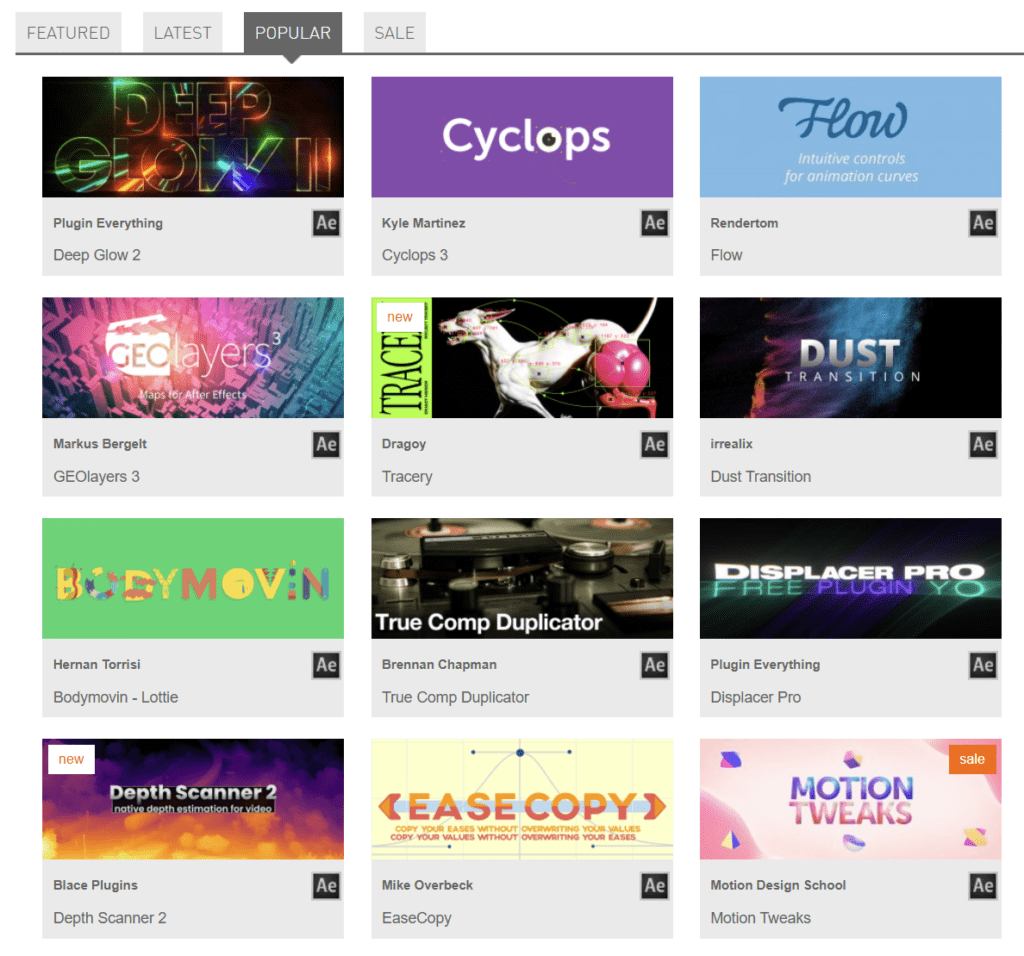
But if we look at the DaVinci Resolve section on that same platform, only 58 tools are available. Even then, most of those aren’t specifically for the Fusion page, but they’re for DaVinci Resolve.
Similarly, the Storyblocks library features over 16,000 Effects templates, offering prebuilt motion graphics, titles, and animations that users can customize for their projects. At this point, the extension and community-driven content in After Effects is unparalleled.
While there are Fusion templates available, including in the Storyblocks library, they’re limited in quantity compared to After Effects.
Pricing
Regarding price and long-term accessibility, there’s a significant difference between DaVinci Resolve and After Effects. DaVinci Resolve comes in two versions: the free version and the paid Studio version. I’ve written about this in detail, where you can see the exact differences.
While the free version is incredibly powerful, some advanced features, such as neural engine tools, higher-resolution exports, and certain effects, are locked behind the Studio version. That said, Studio can often be acquired alongside Blackmagic hardware or cameras, making it a one-time investment rather than an ongoing cost.
Fusion, although it was only included in Resolve a few years after 2016, remains free to this day. So, as of right now, you can download and start using cutting-edge compositing software without spending a penny! As noted earlier, for those who prefer it as a standalone application, Fusion Studio is available for a one-time purchase of $295.
After Effects, on the other hand? Not free. In fact, it’s relatively expensive, especially since Adobe no longer offers the option to purchase a license outright. After Effects operates on a subscription-only model. Adobe no longer offers a perpetual license.
The current 2026 pricing is:
- Single app (After Effects only): $22.99/month (annual plan, billed monthly) or $34.99/month (month-to-month)
- Creative Cloud All Apps: $54.99/month (annual), includes Premiere Pro, Photoshop, Illustrator, and 20+ other applications
For creators just starting or those working with tight budgets, committing to an ongoing subscription is a genuine barrier. At $22.99/month on an annual plan, After Effects alone costs around $276 per year, every year, indefinitely. Resolve’s free tier, with the option to upgrade once if needed, offers a much lower-risk entry point.
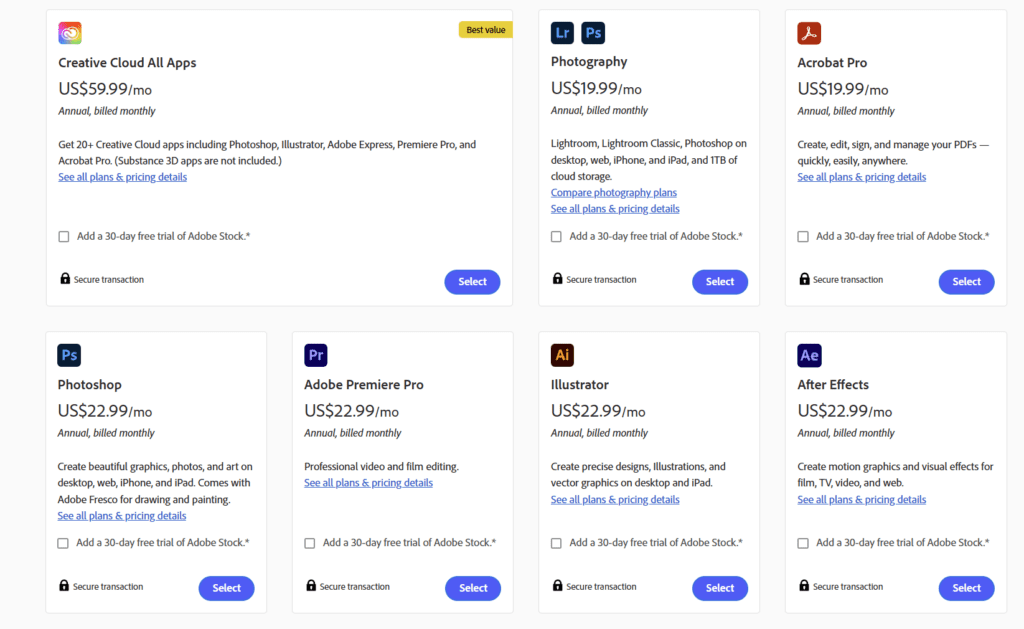
If you’re already in the Adobe ecosystem and rely on Premiere Pro or other Creative Cloud apps, the All Apps plan changes the calculation, since After Effects effectively comes along for the ride. But for someone choosing their first compositing tool with no prior investment in Adobe, the pricing difference is hard to ignore.
Resources and support
After Effects has been around for decades, which means that there’s an abundance of free online learning resources available to help you become an After Effects master. It will take patience, but it’s entirely possible to master the software.
The range of tutorials is vast – whatever niche topic you’re diving into, chances are there’s already a tutorial covering it. You can also find After Effects tutorials over on our Storyblocks YouTube channel as well as written tutorials here on our Resource Center.
Fusion, on the other hand, doesn’t have quite the same volume of educational content. While there are dedicated Fusion channels, the quantity and depth don’t compare to what After Effects has built up over the years.
That said, things are improving. Over the last few years, we’ve seen a noticeable uptick in Fusion tutorials, and many creators are stepping up to cover a broader range of topics.
Both programs also have active, well-moderated subreddits, genuinely useful for beginners and experienced users alike, whether you’re troubleshooting a specific issue or looking for technique inspiration:
For most topics, a quick search will surface a necessary fix to your problem.
Hardware and system requirements
Hardware recommendations are tricky. In the ever-evolving world of technology, with both programs receiving continuous updates that increase system demands, a graphics card recommendation can become outdated within six months.
Below is an overall recommended piece of hardware for each computer component, based on the current 2026 specs. These suggestions come from Purget Systems’ Certified Lab Recommendations.
One key principle to remember between the two is that Blackmagic software is GPU-intensive, while Adobe software leans more heavily on CPU processing. That distinction should guide your hardware priorities based on which tool you use most.
| After Effects | DaVinci Resolve / Fusion | |
| CPU | Best overall: Intel Core i9 285K For High RAM plus performance: AMD Threadripper 7000 Series | Single GPU setups: Intel Core Ultra 9 285K / Ultra 7 265K or AMD Ryzen 9000 Series Multi-GPU / RAW setups: AMD Threadripper 7000 Series For Fusion performance: Prioritize single-core clock speed over core count |
GPU (graphics card) | Best overall: NVIDIA GeForce RTX 5080 (16GB VRAM) Max performance: RTX 5090 (32GB VRAM) | Top pick: NVIDIA GeForce RTX 5090 Value options: RTX 5080 or RTX 5070 Ti |
| RAM (Memory) | Minimum: 64GB High-res (4K+): 128GB | Minimum: 32GB High-res (4K+): 128GB |
How to choose the right software for you
I’ve been editing exclusively on DaVinci Resolve since 2016, and I’m a certified DaVinci Resolve trainer. I also grew up on Andrew Kramer tutorials and spent hundreds of dollars building out an After Effects setup. I’ve used both seriously, and I still use both depending on the job.
In a speed dating manner, here’s how I’d break it down based on who you are and what you’re making.
For editors: Stick with Resolve, Fusion’s right there when you need it. New AI tools (IntelliSearch, Voice to Subtitle) are useful in the edit, too.
For motion designers: Still, After Effects, plugins, and templates are unmatched. AE 26’s new 3D tools (parametric meshes, Substance materials, SVG import, variable fonts) show that Adobe is finally pushing this further.
For filmmakers/VFX artists: Fusion’s worth digging into. Node-based, like Nuke, so it transfers if you ever go down a VFX pipeline route. Tracking’s been sharpened with IntelliTrack AI, plus 3D compositing and tight color page integration. Nodes also carry over to Blender, C4D, and other applications.
For the budget-conscious creator: Go with the free version of DaVinci Resolve. Fusion’s a proper compositor at no cost, most of the new AI tools are included. Plus, Studio’s a one-time buy if you ever need it. AE only makes sense if you’re already paying for Creative Cloud anyway, but as a standalone subscription, it’s tough to justify it over a free option.
Whichever you choose, Storyblocks has pre-made, customizable templates for both DaVinci Resolve and After Effects to speed up your workflow. With unlimited downloads of over 8 million high-quality stock footage clips, music, images, sound effects, and motion backgrounds, all 100% royalty free, you’ll have everything you need for any project. Explore plan options and start downloading today.